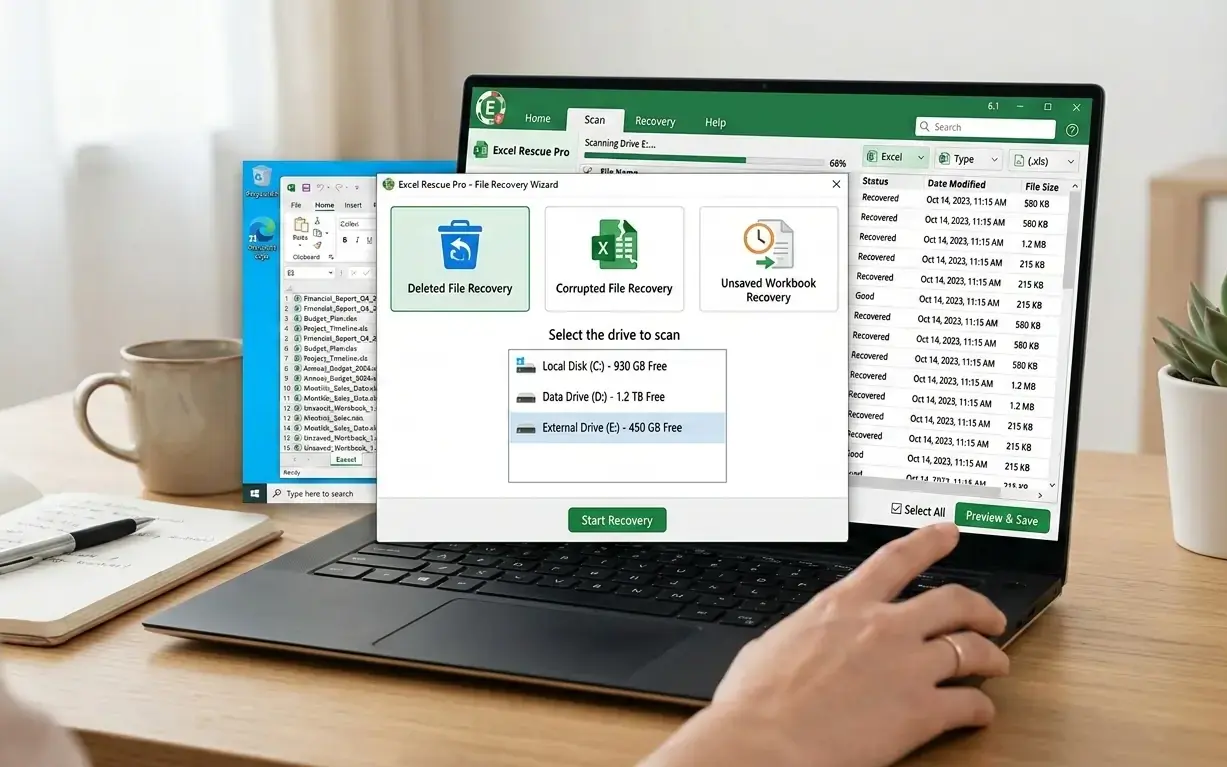
You close Excel, the file won’t open, and the deadline’s not moving. Excel file recovery software can rescue that workbook — if you pick the right approach and act fast. The risk in 2026 isn’t just frustration; it’s time, revenue, and trust on the line. We’ll map the terrain: compatibility, user-friendly tools, advanced options, excel file recovery free choices, and excel file recovery online routes. “One unrecoverable workbook can erase a quarter’s worth of work in a single click.”
Read on and steady the ship.
If your workbook is already corrupted or missing, don’t scroll and hope for the best. Download the complete Excel File Recovery Emergency Checklist at the end of this article and keep it for future incidents.
Understanding Excel File Recovery Software
Before you start clicking every download button in sight, know what you’re using and why. This section defines the category, sketches how these tools work under the hood, and clarifies the practical gains you can expect.
Watch this quick overview to see how professional Excel recovery tools scan, rebuild, and extract damaged data step by step.
What is Excel File Recovery Software?
At its core, excel file recovery software is a specialized utility designed to locate, repair, and restore damaged or deleted .xlsx and .xls files. Some apps target logical issues—like corrupted headers—while others also scan raw storage for fragments of lost workbooks. Good tools don’t just “undelete”; they rebuild sheets, formulas, formats, and sometimes even pivot caches. When spreadsheets power payrolls, audits, or inventory, that nuance matters more than hype.
For a deeper comparison of specific recovery engines and how they handle structural rebuilds — including XML repair and formula recovery — check out this comprehensive guide to using Kernel for Excel Repair.
How Does Excel File Recovery Software Work?
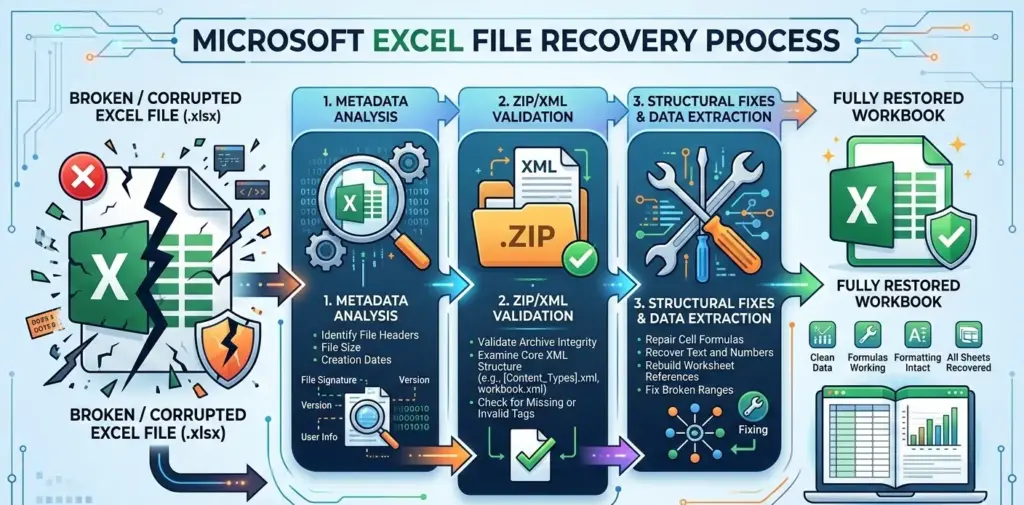
Under the hood, engines parse file signatures, validate ZIP/XML structures, and try to reconstruct workbook parts. Expect layered scans: quick analysis of metadata, then deeper sector-level sweeps. Many tools attempt structural fixes (e.g., repairing shared strings, workbook.xml) before extracting salvageable content to a clean file. Because storage fails unpredictably, strong software also supports disk images, write-blocked scans, and preview modes to reduce risk. Backblaze’s 2025 Year-End Drive Stats report shows an annualized failure rate (AFR) of 1.36% across 344,196 hard drives, down from 1.55% in 2024 — underscoring that hardware failures still happen and justify using recovery tools.
Benefits of Using Recovery Software for Excel Files
Used correctly, these tools can save hours and calm nerves. Here’s what people actually gain.
- Targeted repair: Focuses on workbook structure—worksheets, cell data, and formulas—rather than generic file carving.
- Time savings: Guided scans and previews cut guesswork, which matters when a client is waiting.
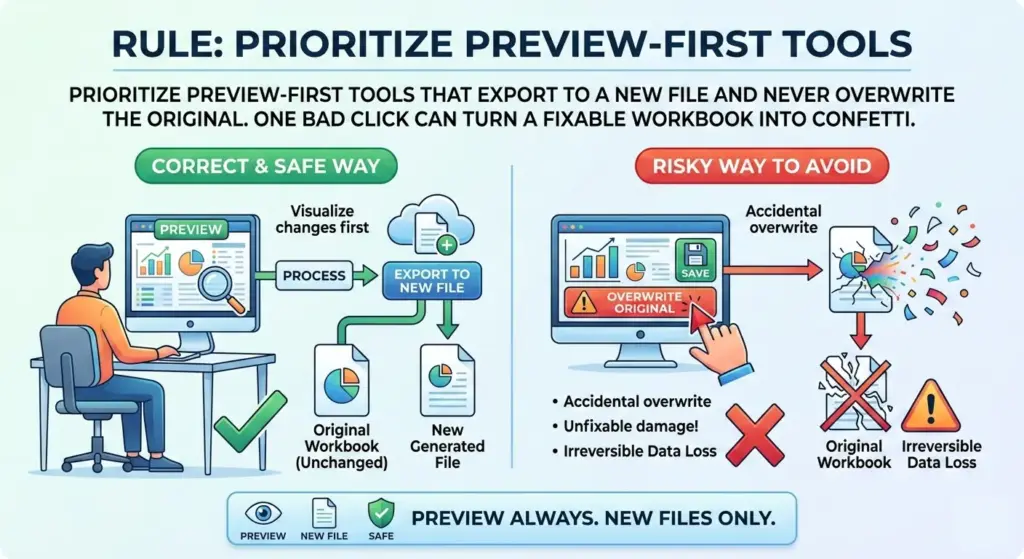
- Risk control: Read-only imaging, session logs, and export-to-new-file workflows protect the original evidence.
- Coverage breadth: Handles deletion, corruption, partition mistakes, and version issues in one toolbox.
- Repeatability: Saved scan sessions and presets help standardize recovery across teams.
Top Features to Look for in Excel File Recovery Software
Not every tool fits every mess. These subsections flag the features that separate capable excel file recovery software from “maybe it works” downloads, so you can match tools to real problems.
Compatibility with Different Excel Versions
Modern workbooks rely on ZIP/XML packaging and can include Power Query, Power Pivot, macros, and shared links. Choose excel file recovery software that explicitly supports Office 365/Excel 2024 and legacy .xls files. Cross-platform support helps if you bounce between Windows and macOS. Look for options that respect OneDrive/SharePoint version history and don’t mangle modern features during export.
User-Friendly Interface and Ease of Use
Stress is high when a file disappears, so interface friction can sink the effort. Clear wizards, readable previews, progress estimates, and human language error messages matter. A good dashboard keeps risky toggles away from novices while letting power users drill down. You shouldn’t need a forensics degree to get your spreadsheet back.
- Guided modes: Simple “Recover workbook” paths for urgent cases, with expert panels tucked behind an Advanced tab.
- Preview fidelity: Shows sheets, ranges, and charts before recovering—so you don’t restore junk.
- Safety cues: Read-only defaults, write-block notices, and clear prompts to save outputs elsewhere.
- Session recall: Resume long scans, compare two previews, and export logs for compliance.
Advanced Recovery Options and Customization
Sometimes you need fine control. Tunable deep scan depths, sector range targeting, and filters by file type can accelerate tough jobs. Look for XML fixers (sharedStrings/workbook.xml), selective sheet export, and the ability to rebuild named ranges without exploding formulas. The best excel file recovery software also reads disk images, supports RAID metadata, and respects NTFS permissions.
Exploring Excel File Recovery Free Options
Money tight or problem small? Free routes can work — within limits. We’ll weigh pros and cons, call out safe places to start, and clarify where excel file recovery free solutions fall short.
This short video compares free Excel recovery methods and explains when they’re enough — and when you’ll need a more advanced solution.
Pros and Cons of Free Recovery Tools
Free sounds great until it isn’t. Weigh these trade-offs carefully.
- Pros: Built-in Excel Open and Repair is quick, safe, and costs nothing.
- Pros: Windows File History and OneDrive/SharePoint Version History bail you out without third-party installs.
- Pros: Community tools help with simple deletions on healthy drives.
- Cons: Limited repair depth; complex XML fixes often fail.
- Cons: Sparse support; forums might answer tomorrow, not today.
- Cons: Some freebies bundle adware—install with caution.
Popular Free Software for Recovering Excel Files
Start where risk is lowest: Excel’s Open and Repair, unsaved file recovery panes, and temporary file folders. Cloud version history can restore a clean revision in seconds. If the file was deleted, Recycle Bin or basic undelete utilities may help—just stop writing to that drive. For deeper corruption, excel file recovery free options often stall; that’s your cue to escalate.
One of the first and safest places to look when a file disappears or becomes corrupted is in Excel’s temporary files. If you want a step-by-step walkthrough for finding and restoring lost workbook data from temp folders, this guide shows you exactly how.
Limitations of Free Software Solutions
Free utilities rarely rebuild complex workbooks, and they struggle when sectors are bad or the file system is damaged. They might recover a shell that opens but loses formulas, pivot caches, or formatting. When the stakes are high—financial models, audits, client deliverables—leaning on excel file recovery software with proven repair modules is safer.
Microsoft’s support guidance notes that features like AutoSave, OneDrive version history, and the Open and Repair dialog are often enough to recover basic workbook issues on healthy files.
Excel File Recovery Online Solutions
Uploading a broken workbook to a website is tempting—no installs, instant results. But convenience has strings. We’ll unpack the upside, then map a safer way to use excel file recovery online and excel file recovery online free tools.
Advantages of Online Recovery Services
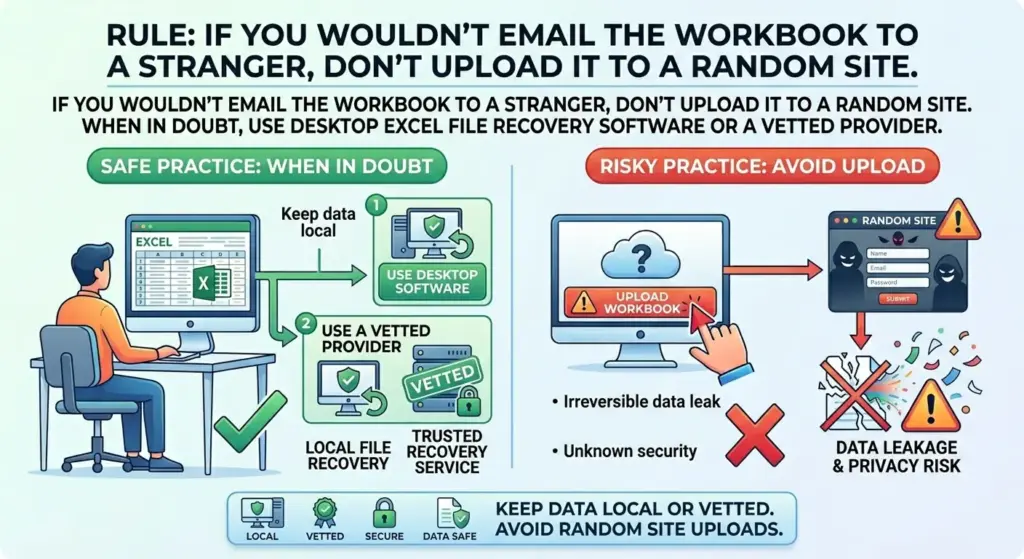
Online platforms scale compute, so deep parsing and conversions feel fast. They’re device-agnostic and often include instant previews. For low-sensitivity data and minor corruption, excel file recovery online can be a quick fix. Just remember: your spreadsheet may contain salaries, PII, or client terms—assume it’s sensitive and act accordingly.
Some file errors aren’t caused by corruption or deletion at all — they result from resource or internal application faults. If you’ve ever seen messages like “Excel cannot complete this task with available resources,” understanding how to resolve that specific error can save you time before trying full recovery tools.
How to Safely Use Online Recovery Tools
Here’s a practical way to reduce risk while trying excel file recovery online free services.
- Sanitize first: Remove PII, hidden sheets, and macros if possible. Save a redacted copy—don’t upload your crown jewels.
- Check the policy page: Read privacy, retention, and region policies. If files aren’t auto-deleted, walk away.
- Prefer client-side processing: Some tools process in the browser. When that’s true, less data leaves your machine.
- Use throwaway storage: Create a temporary folder and unique filename; avoid syncing sensitive tests to company clouds.
- Verify outputs offline: Open results on an isolated machine first; inspect formulas, external links, and named ranges.
- Purge traces: Clear downloads, browser caches, and recycle bins after testing; document what you did.
According to Verizon’s 2024 Data Breach Investigations Report, 68% of breaches involved a non-malicious human element such as error or social engineering — illustrating how human mistakes remain a significant risk in security processes.
Top Online Platforms for Excel File Recovery
Reputation and transparency beat flashy claims. Evaluate sites that publish security practices, support redaction, and let you preview without permanent uploads. If your data is sensitive, consider on-prem tools or trusted vendors with signed desktop apps rather than pure web forms, even when chasing excel file recovery online free results.
- Security transparency: Look for clear deletion windows (e.g., “files auto-delete in 24 hours”) and encryption notes.
- Feature clarity: Do they fix broken XML parts, or just convert to CSV?
- Support signal: Real docs, changelogs, and a way to reach a person signal staying power.
Comparing Paid vs. Free Excel File Recovery Software
You’ve weighed free, desktop, and web choices. Now stack them side by side. We’ll compare costs, performance, and the human help that matters when minutes feel heavy.
Use this quick snapshot to frame your decision; then we’ll dig into details.
| Repair depth | Advanced XML repair, sheet-level recovery, preview/compare | Basic open/repair; limited deep fixes |
| Success on severe corruption | Higher with deep scans and imaging support | Lower; often partial or fails silently |
| Speed on large files | Optimized engines, multi-threading, logs | Varies; can be slow or hang |
| Support | Ticket/SLA, knowledge base, guided triage | Forums or none |
| Total cost | License or subscription | $0, but time risk and lower success |
For high-stakes workbooks, paid usually wins because failed attempts burn hours. For small, low-risk files, free may be fine.
When the cost of failure is real, context matters. IBM’s Cost of a Data Breach Report 2024 found that the **global average cost of a data breach was USD 4.88 million, one of the highest in recent years — highlighting the real financial impact of data loss events.
Cost-Effectiveness and Value for Money
Licenses look pricey until you price people’s time. If a $99 tool saves three hours this week, it paid for itself. Factor in how many recoveries you’ll handle yearly and whether you need commercial support for audits. For freelancers and small teams, a single seat often covers most emergencies.
Performance and Recovery Success Rates
Success hinges on corruption type, drive health, and user actions. Paid apps usually include custom Excel parsers and safer imaging flows, so they fail less and faster. Free tools shine on simple deletions or version rollbacks. If you tried three free routes and still see gibberish, escalate—don’t grind the disk.
Support and Customer Service Options
When you’re stuck, humans help. SLAs, guided logs, and sample-based triage save the day. Community answers can be brilliant—or arrive next week. If the workbook involves payroll or a board report, betting on an emailed forum reply is a gamble you don’t need.
“There are only two types of companies: those that have been hacked and those that will be.”
Robert S. Mueller III, Former FBI Director, RSA Conference 2012
He was talking about security, but the mindset applies: plan for failure, then pick tools that shorten recovery.
- Choose paid tools when deadlines are contractual, data is sensitive, or corruption is severe.
- Use free pat
“Try Excel’s Open and Repair and Recover Unsaved Workbooks before anything else — they’re fast, built-in, and cost nothing.”
— Marcus Nguyen, Microsoft 365 Administratorhs for quick checks — - Open and Repair, version history, and basic undelete—on low-risk files.
- Document outcomes so future you knows which route worked fastest.

Tips for Preventing Data Loss in Excel Files
Recovery’s great; not needing it is better. This section gives you a compact playbook: backups, daily hygiene, and built-in Excel features that quietly save your bacon.
Regular Backup and Storage Solutions
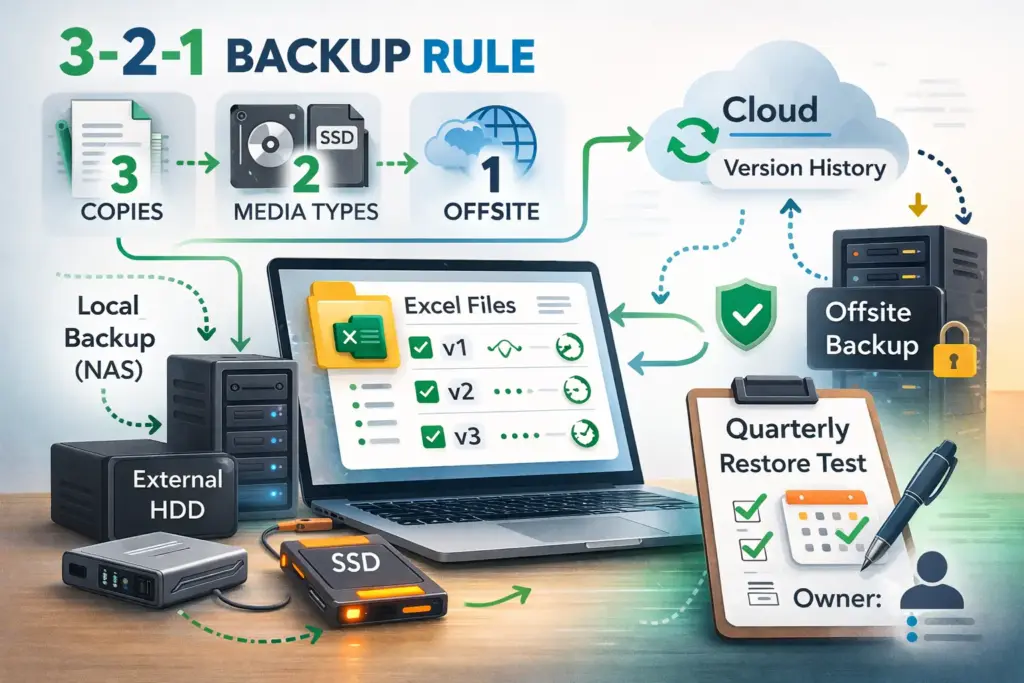
Adopt 3-2-1: three copies, two media types, one offsite. Pair versioned cloud storage with periodic offline snapshots. Backups aren’t a project—they’re a rhythm. Schedule them like rent, not like spring cleaning. If you manage shared workbooks, test restores quarterly and record who owns the process end to end.
- Automate: Daily cloud versioning plus weekly image backups to a separate device.
- Segment: Keep sensitive files in dedicated folders with tighter permissions.
- Test: Restore a random file monthly; trust comes from successful drills.
- Label: Date-stamp backups and document the restore path in plain language.
Best Practices for File Management
Small habits prevent big messes. Name files clearly with dates, avoid spaces in critical paths, and don’t bury workbooks ten folders deep. Keep raw data separate from models, and archive closed projects. Version on purpose—v1, v2, handoff—so nobody edits last quarter by mistake. You’ll thank yourself during audits.
Using Built-In Excel Features to Safeguard Data
Turn on AutoSave with OneDrive or SharePoint, and ensure AutoRecover saves every 5–10 minutes. Excel’s Open and Repair can rescue structure quickly, while version history helps you roll back noisy edits. Microsoft’s guidance spells out the steps and trade-offs clearly, including AutoRecover timing and workspace restoration behavior.
“Data is a precious thing and will last longer than the systems themselves.”
Tim Berners‑Lee, Inventor of the World Wide Web, Weaving the Web
Choosing the Best Excel File Recovery Software for Your Needs
You’ve seen the landscape. Now align it to your reality: file sizes, security rules, timelines, and budget. These quick checks help you settle on excel file recovery software that fits your day-to-day work.
Assessing Your Specific Requirements
List what’s non‑negotiable: platform, admin rights, data sensitivity, and file count. If you work with Power Query, macros, or external links, confirm support. For regulated teams, check audit logs and deployment models. When spreadsheets sit in shared drives, imaging and read‑only scans move from “nice” to “necessary.”
- Environment: Windows, macOS, VDI, or mixed—and who has install rights.
- Security: PII, client NDAs, or compliance constraints that ban uploads.
- Scale: One rescue a month or dozens a week—licensing should match.
- Complexity: Macros, Power Pivot, or external data sources present.
Reading Reviews and User Testimonials
Look past star counts. Scan for stories that mirror your scenario: corrupted XML, missing sheets, giant files. Note support response times and how often updates land. Vendor blogs that explain root causes (not just sales talk) usually signal deeper engineering. Real screenshots beat generic stock art every time.
Trial and Testing Before Purchase
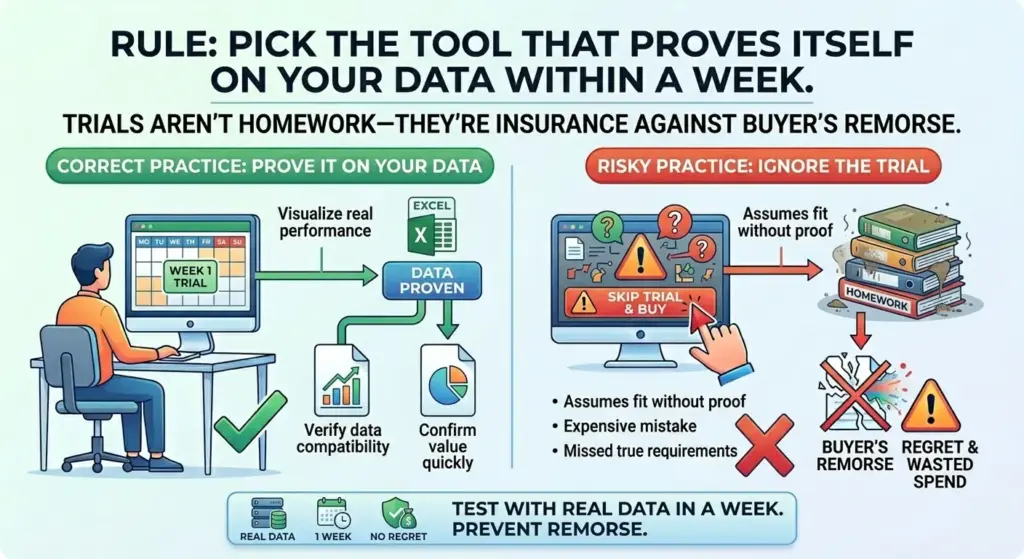
Run trials against safe copies of real problem files, not toy examples. Time every step: scan, preview, export, verification. Keep a scorecard—success rate, speed, and clarity of logs. If a vendor’s excel file recovery software lets you see recovered cells before paying, that transparency is a good sign.
Want deeper help? Try these related resources on our site:
- $3 with safe, step-by-step checks.
- $3 using AutoRecover and version history.
- $3 without nuking your macros.
FAQ
What is excel file recovery software?
It’s a specialized tool that scans, repairs, and restores damaged or deleted Excel workbooks. Good apps rebuild structure—sheets, formulas, styles—rather than just extracting raw text.
How to recover a corrupted Excel file quickly?
Start with Open and Repair, then check OneDrive/SharePoint version history. If that fails, use desktop excel file recovery software to preview and export repaired content to a new file.
Is excel file recovery online safe?
Yes, if you sanitize data and choose reputable sites with clear deletion policies. For sensitive workbooks, prefer desktop tools or vetted vendors over generic excel file recovery online pages.
Paid vs free excel file recovery software—what’s better?
For high-stakes files, paid usually wins on depth, speed, and support. For small, simple issues, excel file recovery free routes like version history can be enough.
Where to use excel file recovery online free?
Use it for redacted, low-sensitivity files when you need a fast test. Check privacy terms, prefer client-side processing, and purge downloads after you’re done.
Want a printable version of this step-by-step recovery plan? Download the full Excel File Recovery Emergency Checklist here:

Keep it saved locally — when Excel fails, you won’t want to search for advice under pressure.
Sources
- 2026, USA, San Mateo, CA, Backblaze, Backblaze Publishes 2025 Drive Stats Report: 13 Years of Data Show a Growing, Healthier Drive Fleet
- 2024, USA, San Mateo, CA, Backblaze, Backblaze Drive Stats for 2024
- 2024, USA, Armonk, NY, IBM, IBM Report: Escalating Data Breach Disruption Pushes Costs to New Highs
- 2024, USA, New York, NY, Verizon, 2024 Data Breach Investigations Report (DBIR)
- 2024, USA, Redmond, WA, Microsoft, Recover or Restore a File That You Saved in Excel for Windows
- Tim Berners-Lee, inventor of the World Wide Web, computer scientist, Weaving the Web
- GuideRealm, educational YouTube creator (software tutorials), How To Recover A Corrupted Excel File – Full Guide
- RecoverFilesNow, data recovery tutorial channel, Recover Deleted Excel Files Quickly & Easily
- Robert S. Mueller III, former Director of the Federal Bureau of Investigation (FBI), keynote speech at the RSA Conference, RSA Conference 2012 Keynote Address