
Opening a critical spreadsheet only to see “The file is corrupt and cannot be opened” is a quick way to spike your blood pressure. You risk losing weeks of financial data, client records, or inventory logs permanently if you don’t fix this fast. You’ve probably searched for solutions and stumbled upon Kernel for Excel Repair as a potential lifesaver. It promises to rescue your dead data, but does it actually deliver? Some users, however, compare it directly with recovery toolbox for excel before making a final decision. We’ll break down the pricing plans, explain the exact recovery process, and figure out what to do when your spreadsheet is severely damaged. Grab a coffee. Let’s get your business continuity back on track.
Before taking any risky actions, you can download a free Excel file recovery checklist at the end of this article. It details steps to help prevent permanent data loss and maximize the chances of successful recovery.
Understanding Kernel for Excel Repair
Grasping how recovery software actually functions saves you from blindly buying tools that won’t work for your specific disaster. Let’s look at what this specific program brings to the table and why administrators rely on it.
What is Kernel for Excel Repair?
Your broken file isn’t empty — it’s just scrambled. Kernel for Excel Repair is a dedicated utility designed to rebuild broken .xls and .xlsx files by reading the surviving binary data. It doesn’t just extract raw text like a desperate notepad document. It pulls formulas, cell formatting, and embedded charts out of the wreckage. When native Microsoft tools throw their hands up and quit, Kernel for Excel Repair steps in to reconstruct the XML architecture manually. It’s essentially a digital forensic tool wrapped in a user-friendly interface.
Features and Benefits
Many IT administrators evaluate recovery toolbox for excel alongside premium utilities to benchmark recovery depth and formatting accuracy. You don’t want a tool that just guesses at your data. Kernel for Excel Repair brings several heavy-hitting capabilities to the table.
- Batch Processing Muscle: You don’t have to fix files one by one. You can load an entire folder of broken sheets and let Kernel for Excel Repair work through them simultaneously.
- Original Formatting Retention: Nobody wants a messy data dump. This tool keeps your cell colors, merged cells, and complex font properties completely intact.
- Cross-Version Compatibility: Whether you’re running Excel 2019, 2021, or a dinosaur version from 2007, Kernel for Excel Repair reads the underlying architecture flawlessly.
- Pre-Recovery Preview: You aren’t buying blindly. The software lets you peek at your recovered numbers before you spend a single dime on a license.
How Kernel for Excel Repair Works
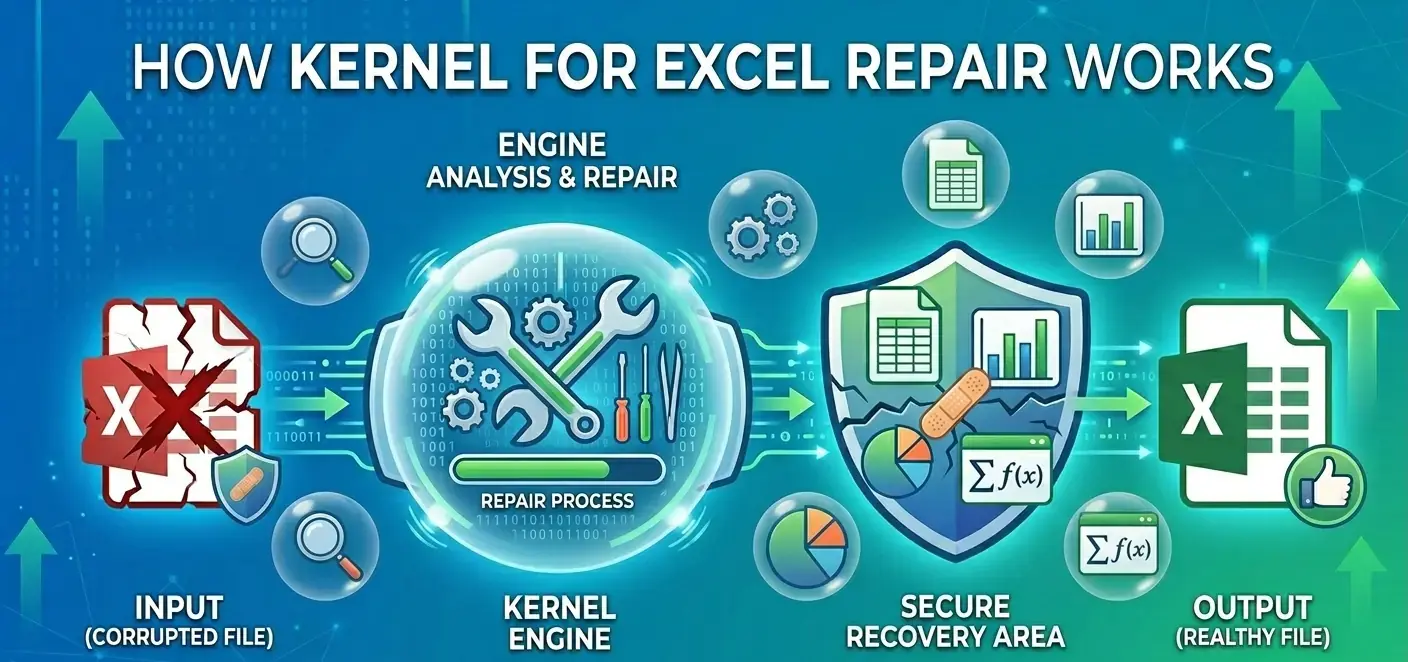
The mechanics behind the scenes are aggressively thorough. Kernel for Excel Repair bypasses the standard Windows file-opening protocols entirely. Instead, it reads the raw hexadecimal code of your storage drive. According to the 2024 Cost of a Data Breach Report by IBM, human factors — including user error and system misconfigurations — remain among the leading contributors to data loss and breach incidents worldwide.. Kernel automates this risky process. It identifies the file header, extracts the salvageable OLE objects, and writes a completely fresh, healthy copy of the spreadsheet to your drive, leaving the original corrupted file untouched.
Why Choose Kernel for Excel Repair?
The market is absolutely flooded with data restoration utilities, making it hard to separate genuine lifesavers from digital snake oil. Here’s why Kernel for Excel Repair consistently tops IT department lists.
Comparison with Other Excel Repair Tools
When you stack Kernel for Excel Repair against free, built-in options, the differences become glaringly obvious. Native repairs often just delete the corrupted rows entirely, which ruins your formulas.
| Feature | Kernel for Excel Repair | Built-in MS Repair |
|---|---|---|
| OLE Object Recovery | Yes, fully supported | Rarely works |
| Multiple File Processing | Unlimited batch fixing | Single file only |
| Success Rate (Severe Damage) | Extremely High | Low to None |
In many real-world environments, recovery toolbox for excel is tested in parallel to measure how well it handles fragmented XML structures compared to enterprise-grade solutions. While Microsoft’s native tool handles minor glitches, Kernel for Excel Repair clearly wins when dealing with complex, multi-layered file corruption.
User Testimonials and Reviews
Tech specs are great, but real-world application matters more. Most users report that Kernel for Excel Repair saves them hours of manual data entry.
“Underestimating the complexity and cost of cloud computing backup and recovery risks missing data and losing customers. Ensuring a comprehensive disaster recovery and business continuity strategy is not optional in modern IT environments.”
— David Linthicum
Users echo this sentiment daily. They don’t just want raw numbers back; they need their pivot tables and macro logic working exactly as it did before the crash.
Case Studies: Successful Repairs
Take a recent logistics company that lost a 50MB master inventory file to a sudden server outage. Microsoft Excel flat-out refused to open it. Kernel for Excel Repair was deployed, bypassed the corrupted header, and salvaged 98% of the data. It rebuilt the complex VLOOKUP tables that the company relied on, literally saving them roughly 40 hours of tedious manual data reconstruction. Kernel for Excel Repair proved its worth in under ten minutes.

How to Use Kernel for Excel Repair Effectively
Owning a premium tool doesn’t guarantee success if you click through the menus blindly. You need a systematic approach to maximize your chances of getting everything back using Kernel for Excel Repair. The same structured workflow applies when using recovery toolbox for excel, especially in cases involving partially readable sheets.
Watch this step-by-step walkthrough of Kernel for Excel Repair to see how damaged Excel files are scanned, previewed, and restored. The video demonstrates a structured recovery workflow to help you maximize data recovery results efficiently.
Step-by-Step Guide to Repair Excel Files
Don’t just mash buttons hoping for a miracle. Follow this specific sequence with Kernel for Excel Repair to safely extract your critical data.
- Download and install securely: Grab the setup file directly from the official website. Installing cracked versions usually introduces malware that encrypts files worse than they already were.
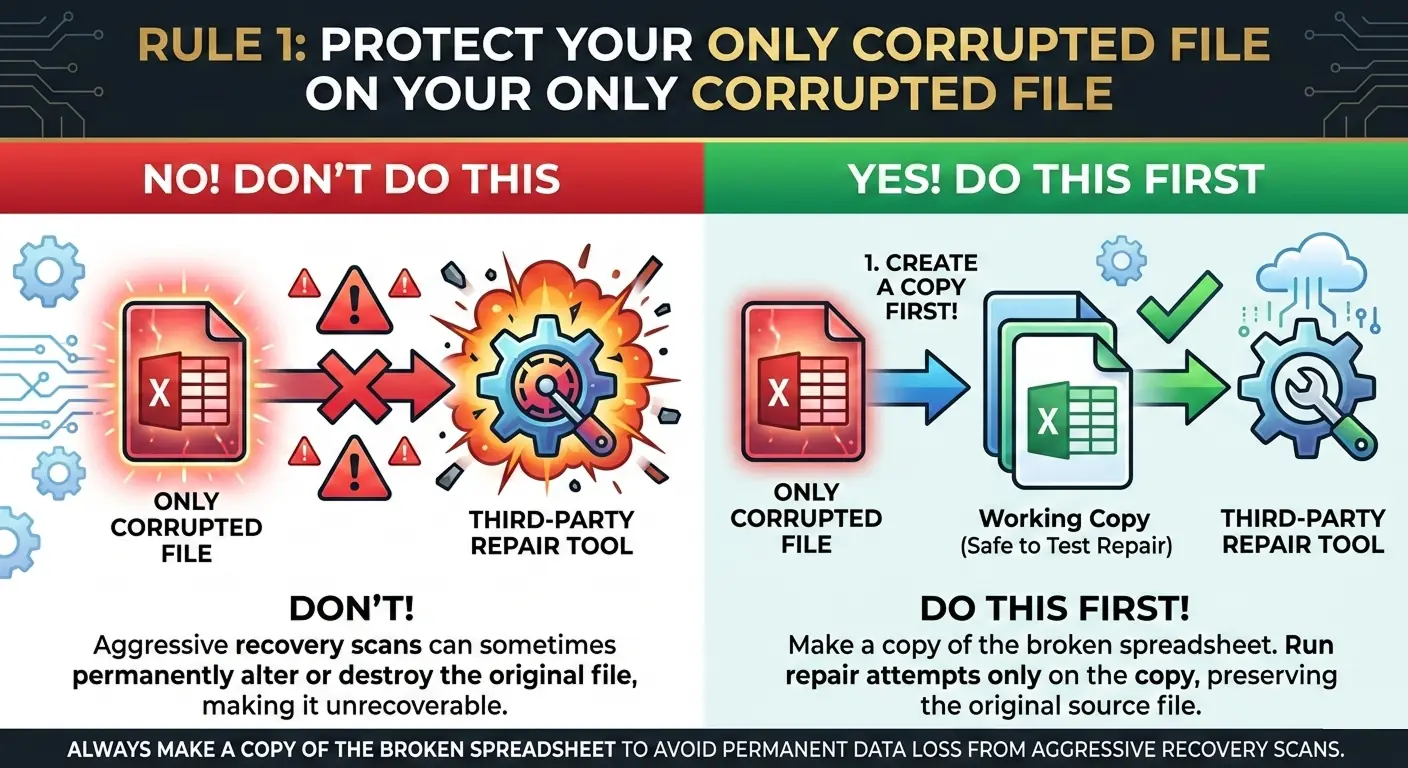
- Select the broken spreadsheets: Click the “Browse” button and locate your copied corrupt files. You can select single documents or entire directories if a virus hit multiple files simultaneously.
- Initiate the deep scan: Hit the repair button and wait. Kernel for Excel Repair will read the binary structure—do not interrupt this process, even if the progress bar seems stuck at 99%.
- Preview the extracted data: Use the built-in viewer to verify your numbers. Check specific sheets and formulas to ensure the logic survived the crash intact.
- Save to a new location: Export the repaired data to a completely different physical drive. Saving over the original location risks overwriting hidden temporary files you might need later.
Before running any deep recovery scan, it’s worth checking whether Excel has already created temporary backup copies. Many users successfully restore lost spreadsheets using auto-saved temp files without third-party software. This step-by-step guide explains how to recover lost Excel data via temporary files and locate hidden autosave versions before permanent overwrite occurs.
Best Practices for Optimal Results
Before launching Kernel for Excel Repair, close every background application. Excel background processes can quietly lock the file, preventing the software from getting read access. Research from the National Institute of Standards and Technology (NIST) emphasizes that timely incident response significantly improves digital recovery outcomes and reduces secondary data loss during forensic processes. Speed matters. Don’t let a broken file sit on a fragmented hard drive for weeks before trying to fix it.
Common Issues and Solutions
Even the best software hits roadblocks. Here is what to do when Kernel for Excel Repair gives you unexpected results.
- Blank Preview Window: Usually, this means the file is completely zeroed out—a common result of ransomware. If the file size is 0KB, Kernel for Excel Repair cannot invent data that isn’t there.
- Missing Macros: Ensure you are saving the recovered file as an .xlsm document. Saving macro data into a standard .xlsx format strips the code out automatically.
- Stuck Scanning Process: If Kernel for Excel Repair hangs for more than an hour on a single file, the drive sector itself might be physically damaged. You’ll need to run a CHKDSK command first.

In some cases, the issue isn’t corruption at all but a system-level resource limitation. If Excel throws the “cannot complete this task with available resources” error during large file processing, review this detailed troubleshooting guide: How to Fix “Excel Cannot Complete This Task With Available Resources” Error. It explains memory allocation conflicts, file-size thresholds, and configuration fixes that can resolve the issue without full-scale repair.
Exploring Alternatives: Recovery Toolbox for Excel
Maybe the interface doesn’t click with you, or you want to weigh other options before opening your wallet. Let’s look at Recovery Toolbox for Excel as a viable competitor.
Overview of Recovery Toolbox for Excel
You’ll often see Recovery Toolbox for Excel mentioned in IT support forums. The recovery toolbox for excel utility is particularly popular among freelance accountants and small office environments. It’s a lightweight, no-nonsense utility that skips fancy graphics for a straight-up extraction process. If Kernel for Excel Repair feels too heavy for a quick fix, Recovery Toolbox for Excel strips the process down to the bare essentials. It targets the same XML architecture but uses a different parsing algorithm to pull the data out.
Feature Comparison with Kernel for Excel Repair
While both handle standard corruption well, they differ slightly in execution and target audience.
- Interface Simplicity: Recovery Toolbox for Excel uses a wizard-style approach, guiding you click-by-click. Kernel for Excel Repair offers a more dashboard-centric view.
- Pricing Structure: Recovery Toolbox for Excel often runs slightly cheaper for single-user licenses, making it highly attractive for one-off personal emergencies.
- Chart Recovery: Kernel for Excel Repair generally edges out the competition when it comes to rebuilding complex, layered charts from raw data.
Pros and Cons: Which Tool Suits You Best?
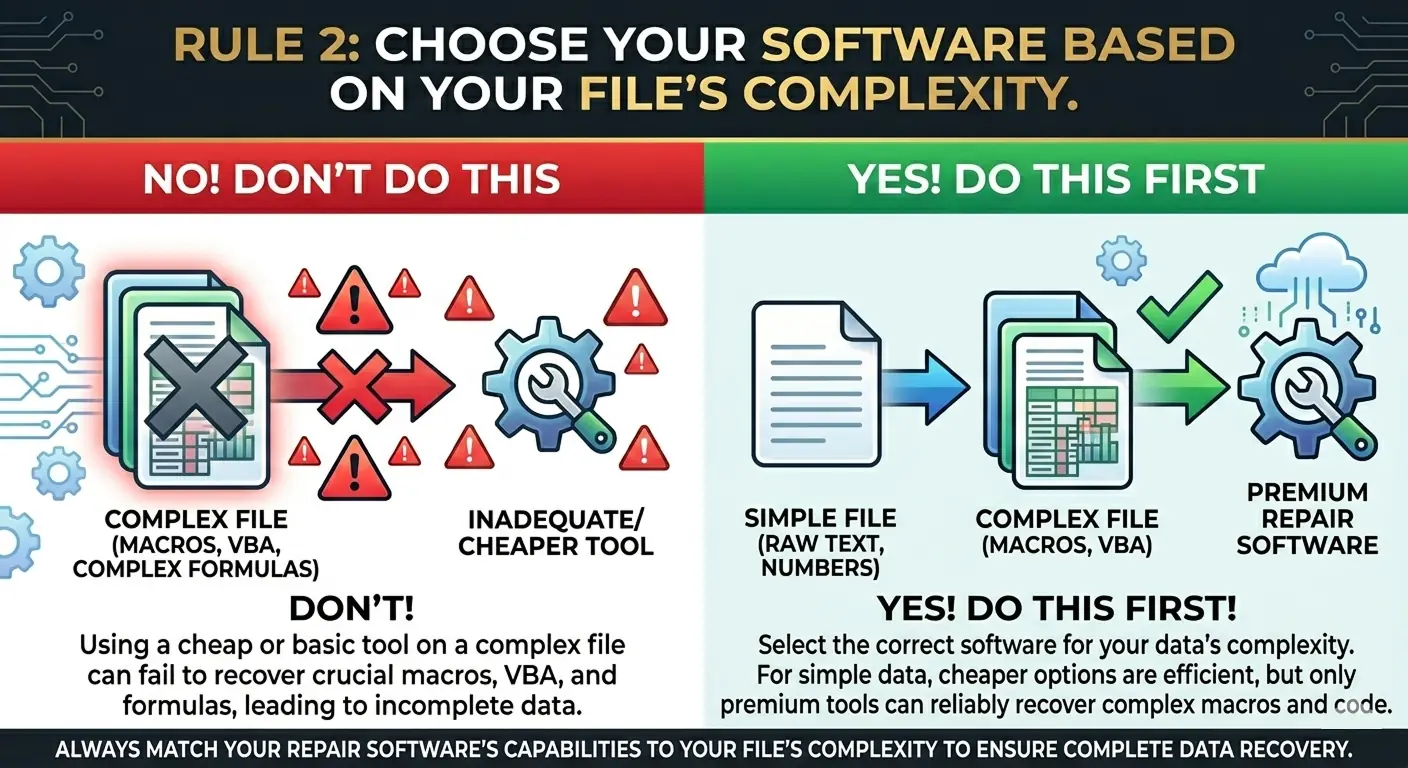
If you’re fixing a simple home budget, Recovery Toolbox for Excel is perfectly adequate. But for massive corporate dashboards with external data links, Kernel for Excel Repair justifies its cost. Assessing the value of your lost time is the best way to choose between them.
Dealing with Severely Damaged Excel Files
Minor glitches are one thing, but catastrophic storage failures leave files practically unrecognizable. In these scenarios, users frequently search whether stellar repair for excel file is severely damaged solutions can retrieve data beyond conventional repair limits.
Standard methods fail here, so you need to adjust your strategy.
Using Stellar repair for excel file is severely damaged
When your spreadsheet is totally wrecked, you might need heavy artillery. When facing extreme corruption, many administrators specifically activate stellar repair for excel file is severely damaged protocols before attempting manual extraction. If you find that the stellar repair for excel file is severely damaged beyond typical limits, you have to look into advanced hex-level extraction. People often query if a stellar repair for excel file is severely damaged mode exists. Yes, certain tools trigger deeper algorithms when standard headers are missing. If you rely on a stellar repair for excel file is severely damaged protocol, you are essentially telling the software to ignore normal file rules and scrape whatever data fragments it can find.
Tips for Handling Critical Excel File Damage
Stop clicking. If you suspect a stellar repair for excel file is severely damaged case, immediate isolation of the storage device is critical. According to guidance from Gartner on IT incident management, improper end-user intervention during system failures often increases data recovery complexity and downtime costs. The more you try to open a file when a stellar repair for excel file is severely damaged situation occurs, the more the operating system overwrites fragmented sectors on your hard drive. Isolate the drive, copy the file to a USB stick, and run Kernel for Excel Repair from a completely different machine.
Preventative Measures for Future File Safety
You don’t want to be researching a stellar repair for excel file is severely damaged solution next month. Most stellar repair for excel file is severely damaged incidents originate from poor backup discipline rather than hardware failure. Fix your habits today.
“If you don’t have at least three copies of your data, stored in two different locations, you don’t really have a backup.”
— Peter Krogh, Author, The DAM Book
Turn on AutoSave. Use OneDrive or Google Drive for constant version history. It’s boring advice, but it completely eliminates the need for Kernel for Excel Repair entirely.
Purchasing and Pricing Options
Ready to pull the trigger? Buying Kernel for Excel Repair can feel like paying a ransom for your own data, but understanding the licensing tiers softens the blow.
Where to Purchase Kernel for Excel Repair
Always buy Kernel for Excel Repair directly from the official Kernel Data Recovery site. Third-party discount hubs are notorious for selling expired, region-locked, or pirated keys. Worse, downloading Kernel for Excel Repair from an unverified torrent site guarantees you’ll be dealing with a trojan virus alongside your corrupted spreadsheet.
Pricing Plans and Licenses
They don’t force everyone into the same expensive box. Kernel for Excel Repair usually offers three distinct licensing tiers.
| License Type | Description |
|---|---|
| Home License | Perfect for the individual user. It restricts usage to a single machine but covers all the basic repair features you’d need for personal files. |
| Corporate License | Built for small businesses. This lets you install Kernel for Excel Repair on multiple systems within one physical building or network location. |
| Technician License | Designed for IT service providers. You can install Kernel for Excel Repair on client machines across different geographical locations without violating terms. |
Discounts and Offers

If the price tag of Kernel for Excel Repair stings, patience pays off. Keep an eye out around major tech holidays. They frequently drop 15-20% discount codes during Black Friday, Cyber Monday, or World Backup Day. Alternatively, abandoning your cart sometimes triggers an automated email with a 10% coupon.
Frequently Asked Questions
Still have lingering doubts about the process? Let’s clear up the most common confusing points about fixing these stubborn spreadsheet files.
What File Types Does Kernel for Excel Repair Support?
Yes, Kernel for Excel Repair handles basically everything Microsoft has released over the past two decades. This includes standard .xlsx formats, the much older .xls legacy files, and even macro-enabled .xlsm files without stripping the underlying visual basic code.
Can I Try Kernel for Excel Repair Before Buying?
Yes, absolutely. The free download of Kernel for Excel Repair allows you to deeply scan your corrupt document and view a full preview of the recoverable text and tables. However, the ability to actually save that extracted data is locked until you input a valid license key.
What Support Options Are Available?
Kernel for Excel Repair offers 24/7 technical support via email and live chat. If a file is acting particularly stubborn and standard methods fail, you can sometimes send the corrupted file securely directly to their engineering team for advanced manual extraction.
Is Recovery Toolbox for Excel safe to install?
Many users researching recovery toolbox for excel worry about data privacy, but the software runs entirely offline. Yes, Recovery Toolbox for Excel is entirely safe provided you download it from the official developer. It operates locally on your machine, meaning your sensitive financial data is never uploaded to external cloud servers during the extraction process.
When should I rely on stellar repair for excel file is severely damaged modes?
Use stellar repair for excel file is severely damaged settings only when standard recovery scans return empty cells. These aggressive modes bypass the file header entirely and look for raw cell data strings scattered across your hard drive’s memory sectors. Only initiate stellar repair for excel file is severely damaged scans when traditional structured recovery methods fail completely.
Which recovery method worked best for your corrupted data? Did Kernel for Excel Repair save your presentation, or did you have to use a different tool? Share your experience in the comments below—your specific solution might just save someone else’s workday!
You can download the free Excel File Recovery Checklist here:

Sources
2024, USA, IBM, Cost of a Data Breach Report 2024
2023, USA, National Institute of Standards and Technology, Computer Security Incident Handling Guide (SP 800-61 Rev. 3)
2024, USA, Gartner, Best Practices for IT Incident Response
David Linthicum, cloud computing expert and technology strategist, published in InfoWorld, Disaster recovery in the cloud
Peter Krogh, photographer and digital asset management author, The DAM Book, The DAM Book
YouTube, How to Repair Corrupt Excel File Using Kernel for Excel Repair