
Your document just refused to open, and the data inside might be months of work — that panic is real, and it’s happening to more people than you’d think. Knowing how to fix corrupt Excel file problems fast can mean the difference between a 10-minute recovery and a catastrophic loss. In this guide you’ll find manual repair steps, the best excel repair tool for xls and xlsx files, free online options, and what to do when nothing else works. Whether your spreadsheet throws a vague error or flat-out won’t load, this guide will show you how to fix corrupt excel file issues step by step.
If you’re dealing with a corrupted spreadsheet right now, you may want a simple step-by-step recovery plan. At the end of the article you can download our Corrupted Excel File Recovery Checklist to follow a safe recovery process and avoid making the problem worse.
Understanding Excel File Corruption
Before trying to fix anything, it helps to know what actually went wrong. Excel corruption isn’t random — it follows patterns, and recognizing those patterns speeds up recovery. In many cases, understanding these patterns is the first step to fix corrupt excel file issues before they escalate. The sections below cover the root causes, the warning signs to watch for, and the habits that stop corruption before it starts.
This short walkthrough explains the most common causes of Excel corruption and shows practical recovery methods — from built-in Excel repair features to basic troubleshooting steps that help restore damaged spreadsheets quickly.
Common Causes of Corruption
Most corrupted spreadsheets share one of a handful of origins. According to the 2024 Data Loss Landscape Report by Proofpoint, 85% of organizations experienced at least one data loss incident in the past year, highlighting how widespread data corruption and loss events have become in modern IT environments.
- Abrupt power cuts or system crashes: Saving an XLSX document mid-write and losing power at that exact moment leaves the structure incomplete. Even a split-second outage is enough.
- Malware and virus attacks: Malicious software can infect data and either corrupt it or silently alter its content, leading to inaccessibility you won’t notice until the next open.
- Hardware failure and bad sectors: Physical damage to a hard drive causes read/write errors that land directly inside your spreadsheet’s binary data.
- Oversized files: Research on data-loss causes shows that hardware failures account for about 40–44% of incidents, while human error causes roughly 29–32%, and software corruption about 14% of data loss cases.
- Improper closing: Force-quitting Excel or pulling a USB drive before the save completes is one of the fastest routes to a broken XLSX.
- Version conflicts: Opening a document created in an older Excel build inside a newer one can trigger compatibility errors that mimic corruption.
Signs Your Excel File is Corrupted
Corruption rarely announces itself cleanly. Sometimes the programme opens the document but the data looks scrambled. Other times the app just freezes. Watch for these red flags:
- Error messages like “excel file corrupted and cannot be opened” or “Excel cannot open the file because the format or extension is not valid”.
- The workbook opens but shows garbled characters or completely blank cells where data should be.
- “Error: Data May Have Been Lost” appearing on launch.
- Formulas that return errors even though the referenced cells look intact.
- Excel hanging at the loading screen without fully opening the file.
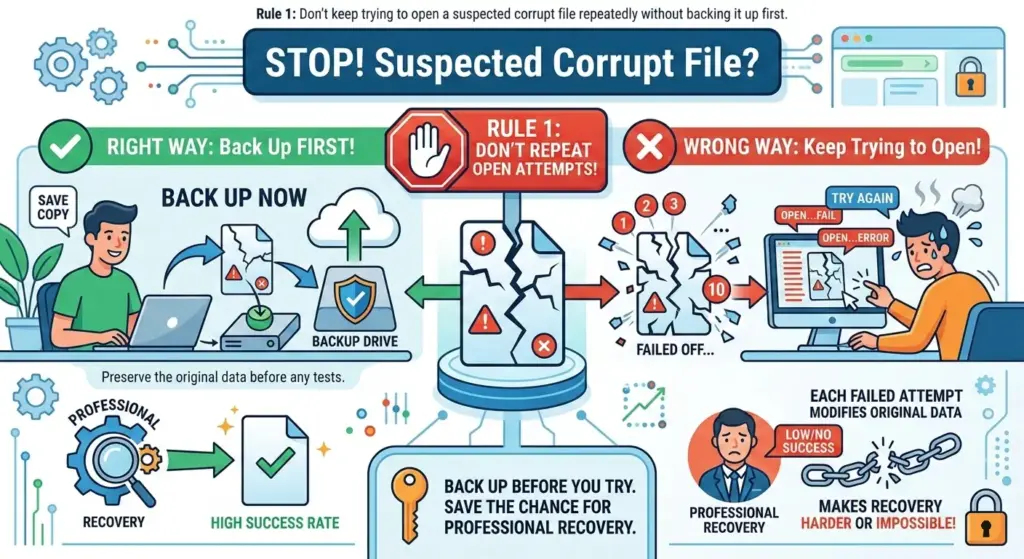
If you’re trying to fix corrupt excel file problems manually, the methods below are the safest place to start.
Preventing Future File Corruption
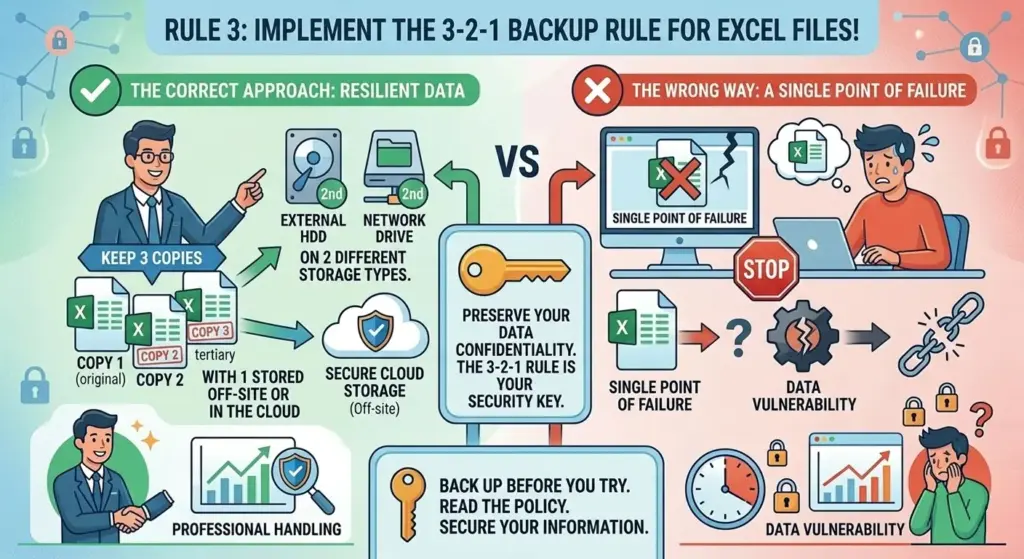
Most corruption is preventable, but when it happens it’s important to know how to fix corrupt excel file problems quickly. The 3-2-1 backup rule — three copies of the document, two different media types, one off-site — is overkill for personal spreadsheets, but the mindset behind it isn’t. Save locally, sync to OneDrive or Google Drive automatically, and enable AutoRecover inside Excel (File → Options → Save → every 5 minutes, not the default 10). Keep it under 15 MB by splitting large datasets into linked workbooks. And never edit a critical spreadsheet directly from a USB or network share without copying it locally first.
Manual Methods to Fix Corrupt Excel Files
Not every corruption case needs a paid tool if you’re trying to fix corrupt excel file errors using built-in Excel features. Microsoft built several recovery options directly into Excel, and Windows adds a few more via version history. These three approaches should always be your first line of attack before spending money on third-party software.
Using Excel’s Built-in Repair Tool
Excel’s “Open and Repair” function is the fastest free starting point. It won’t fix heavily damaged files, but for mild to moderate corruption it succeeds more often than people expect. This built-in feature is often the first method people try when they need to fix corrupt excel file problems without external software.
- Open Excel without opening your document. Launch a blank workbook so Excel itself is running cleanly.
- Navigate to File → Open → Browse. Locate the corrupted workbook in the file browser — but don’t double-click it yet.
- Click the arrow next to the Open button. A small dropdown appears with alternative opening modes.
- Select “Open and Repair.” Excel will scan the documents’s structure and attempt to reconstruct damaged sections automatically.
- Choose “Repair” first. This recovers as much workbook data as possible. Only choose “Extract Data” if Repair fails — it pulls raw values and formulas but strips formatting.
- Save the recovered file under a new name immediately. Don’t overwrite the original in case you need to try a different method later.
- If it still fails, try switching calculation to Manual. Go to File → New (blank workbook), then File → Options → Formulas → Manual. Then re-open the damaged file — removing automatic recalculation sometimes lets Excel load a file it otherwise rejects.
One important caveat: as noted in Recovery Toolbox for Excel’s 2025 comparative testing, the built-in Open and Repair function modifies the original file during its attempt — so always work on a copy, never the only remaining version.
Restoring a Previous Version of the File
Windows 10 and 11 keep shadow copies of datasets through File History and the Previous Versions feature. Right-click the corrupted XLSX in File Explorer, select “Properties,” then click the “Previous Versions” tab. If backups were enabled, you’ll see timestamped snapshots. Pick the most recent one that predates the corruption event and restore it to a new location. OneDrive users get version history built in — open the OneDrive web portal, right-click the file, and select “Version History” to roll back without touching the local copy.
Opening in Safe Mode to Repair
Excel Safe Mode strips away add-ins and custom configurations that occasionally cause data to load incorrectly — making them appear corrupted when they’re actually fine. Hold Ctrl while clicking the Excel icon to open in Safe Mode, then try opening the document from there. If it works, the problem isn’t the file itself but a conflicting add-in. Go to File → Options → Add-ins, set the Manage dropdown to “COM Add-ins,” and disable them one by one to isolate the offender. It’s a surprisingly common fix that most guides skip entirely.
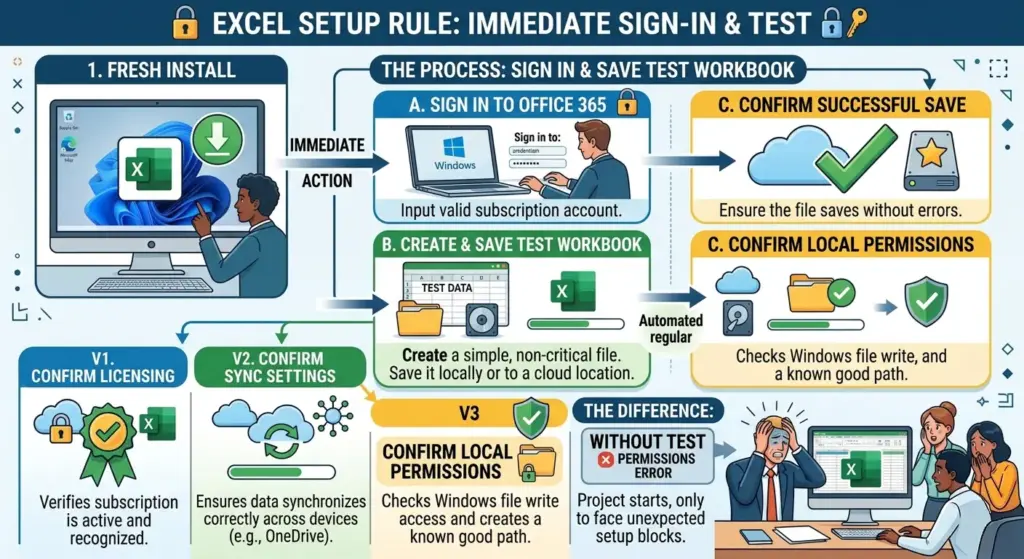
Best Excel Repair Tool for XLS and XLSX Files
When manual methods don’t cut it, a professional excel repair tool for xls and xlsx files becomes the most reliable solution. If you’re comparing different repair solutions and want a deeper breakdown of available tools and recovery capabilities, this detailed guide to excel repair tool for xls and xlsx files explains how specialized recovery software works and what features actually matter during document repair. The market ranges from free utilities to professional-grade tools costing $100+, and the difference in recovery depth is significant. Here’s what’s actually worth your time.
This tutorial demonstrates how dedicated repair utilities recover corrupted XLS and XLSX files, showing step-by-step techniques used by professional tools to extract data when Excel’s built-in repair option fails.
Top Excel Repair Tools for XLS and XLSX
These tools go well beyond what Excel’s built-in repair can do, targeting deeply damaged structures and recovering data that Microsoft’s own utility leaves behind.
- Recovery Toolbox for Excel (excelrecoverytool.com): Supports every major Excel format — XLS, XLSX, XLSM, XLTM, XLTX, XLT, and XLAM. Recovers formulas, cell formatting, column widths, row heights, and worksheet data. Works directly in-browser via its online version, or as a downloadable Windows application. A demo mode lets you preview recovered data before purchasing a license.
- DataNumen Excel Repair: Frequently cited for its high recovery rate across corrupted XLS and XLSX files. Supports batch processing of multiple documents simultaneously and doesn’t overwrite original data during repair.
- Stellar Repair for Excel: Strong on moderately damaged data and popular with IT departments. Recovers charts, tables, images, and pivot tables alongside raw cell data.
- Kernel for Excel Repair: Offers both single-file and multi-file (batch) repair modes. Lets you preview recovered content before saving, which is genuinely useful when you’re not sure how much data survived.
If you’re considering Kernel specifically, this in-depth review of Kernel for Excel Repair walks through its recovery process, supported Excel formats, and real-world repair scenarios.
How to Choose the Right Tool for Your Needs
The wrong tool wastes both time and money. Match the tool to your actual situation rather than picking the most advertised option.
If the data is mildly corrupted and you just need raw cell values back, a free excel file repair option (or Excel’s own Extract Data function) might be enough. But if you need formulas, charts, and formatting intact — especially from a large XLSX with complex pivot tables — you need a paid tool with a preview feature. Always check whether the tool supports your specific Excel version (some older utilities lag behind Microsoft 365 file structures). And if you’re dealing with an XLS file (pre-2007 format), confirm the tool handles legacy binary formats, not just XLSX.
“Data is a precious thing and will last longer than the systems themselves.”
— Tim Berners-Lee, Inventor of the World Wide Web, W3C
Comparison of Free and Paid Repair Tools
Choosing between free and paid options comes down to file complexity and how much of the data you actually need back. Here’s how they stack up across the factors that matter most:
| Criterion | Free Tools / Built-in Repair | Paid Tools (e.g., Recovery Toolbox, DataNumen) |
|---|---|---|
| Recovery Depth | Surface-level; works on mild corruption only | Deep structural repair; recovers severely damaged data |
| Format Support | XLSX / XLS (limited) | XLS, XLSX, XLSM, XLTM, XLAM, and more |
| Recovered Elements | Raw cell values and formulas (basic) | Formulas, formatting, charts, images, pivot tables |
| Preview Before Save | No | Yes (most paid tools) |
| Batch Processing | No | Yes |
| Risk to Original File | Moderate (built-in tool modifies original) | Low (reputable tools work on a copy) |
| Cost | Free | $27 – $300+ depending on tool and license |
Bottom line: free tools are worth trying first on simple cases, but for anything critical — financial models, client data, multi-sheet reports — a paid excel repair tool for xls and xlsx files pays for itself in saved hours alone.
“When Microsoft Excel detects a corrupted workbook upon opening, it automatically starts File Recovery mode and attempts to repair the workbook.”
— Microsoft Support, Official Excel Documentation
How to Repair Excel Files Online for Free
Online repair services have matured significantly and are now one of the fastest ways to fix corrupt excel file issues without installing software. You upload a document, the server-side engine processes it, and you download a recovered version — no software installation needed. The catch is that results vary by damage type, and privacy is a real consideration. Here’s the full picture.
Many users turn to corrupted excel file repair online free services when they need a quick solution without installing software.
Step-by-Step Guide to Online Excel File Repair
The process is nearly identical across most platforms:
- Navigate to the repair service (e.g., the online version at excelrecoverytool.com).
- Click “Upload File” or drag your XLSX/XLS onto the upload area.
- Wait for the server to analyze the file — this typically takes 30 seconds to 3 minutes depending on the size.
- Review the preview of recovered data (if the service offers it) before committing to a download.
- Download the repaired file and save it to a new location with a new filename.
- Open the document in Excel and verify that critical data, formulas, and sheet tabs are intact.
Pro tip: if the first attempt returns an empty or incomplete file, try uploading again — some services run multiple recovery algorithms and the second pass occasionally succeeds where the first didn’t.
Pros and Cons of Online Repair Tools
Online tools solve the “I need this fixed right now on a machine that doesn’t have repair software installed” problem elegantly. But they’re not a universal solution.
- Pro — No installation required: Works on any device with a browser, including Macs and Chromebooks where desktop Excel repair apps often don’t run.
- Pro — Instant access: No download, no license key, no waiting. Upload and go.
- Con — File size limits: Most free tiers cap uploads at 5–10 MB, which won’t cover large corporate spreadsheets.
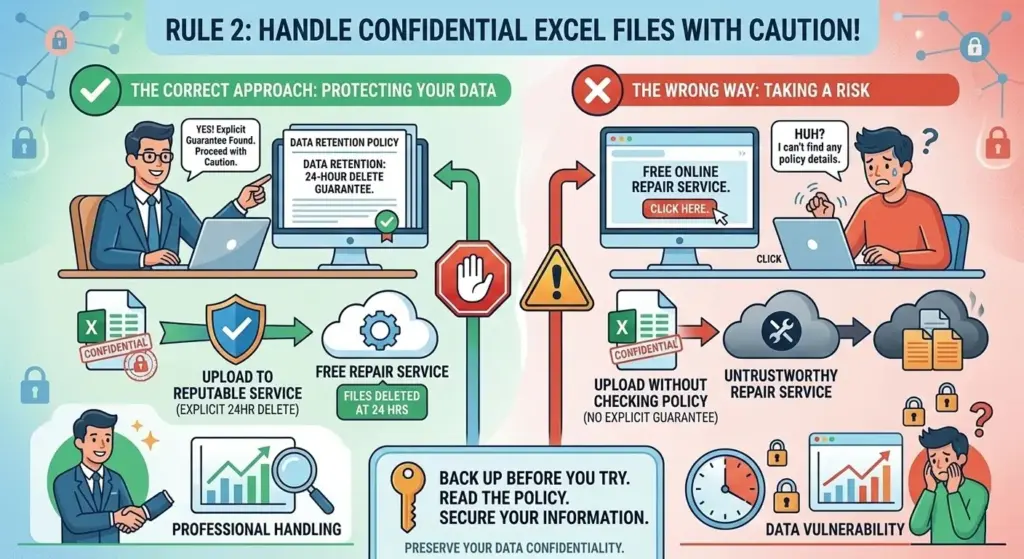
- Con — Privacy exposure: Your data travels to a third-party server. For cases containing financial records, PII, or proprietary business data, that’s a real risk — check the service’s privacy policy and data-deletion guarantees before uploading.
- Con — Limited recovery depth: Server-side tools typically don’t match the recovery depth of locally installed professional software on severely damaged files.
For many users, these services provide the quickest way to fix corrupt excel file problems when local repair attempts fail.
Top Websites Offering Free Excel File Repair Services
Several services offer corrupted excel file repair online free, with varying quality. Recovery Toolbox for Excel at excelrecoverytool.com provides an online mode alongside its desktop tool, supporting XLSX files from Excel 2007 through Microsoft 365. Aspose.Cells online repair handles both XLS and XLSX with a generous free tier. OfficeRecovery Online is another long-standing option, though its free results are watermarked. For a quick diagnostic — to see whether any data is recoverable before committing to a paid tool — these free online platforms are a smart first stop. You can also explore our guide to best Excel repair tools compared and our breakdown of how to recover unsaved files for related recovery scenarios.
What to Do When Excel File Cannot Be Opened or Repaired
Some files resist every standard approach. When your Excel file corrupted and cannot be opened by any tool you’ve tried, or when repair attempts leave you with incomplete data, the options get more advanced — but they do exist. Don’t write off the data yet. Even if your excel file corrupted and cannot be repaired, there are still several advanced recovery approaches worth trying.
If you’re dealing with severe corruption or data loss, it may help to understand the broader landscape of recovery tools and techniques. This guide to Excel file recovery software explains how professional data-retrieval tools work and when software recovery becomes more effective than manual repair.
Troubleshooting Techniques for Unrepairable Files
Before escalating to professional services, exhaust these lesser-known technical approaches. If standard repair utilities fail to fix corrupt excel file damage, these technical workarounds can sometimes recover the data.:
- Move the file off a network drive: A disk or network error can make a workbook appear corrupted when it’s actually intact. Copy it to a local drive and retry. Microsoft explicitly recommends this as a first troubleshooting step.
- Save as SYLK format: Open a blank workbook, try File → Open with the corrupted file, and if it loads at all, immediately do File → Save As → SYLK (.slk). This strips out potentially corrupted elements like printer settings that sometimes cause cascade failures. Then re-open the SYLK file and re-save as XLSX.
- Use external references: Create a brand-new workbook and link cells back to the damaged one using external reference formulas (='[CorruptedFile.xlsx]Sheet1′!A1). This can pull raw values out of a file refuses to open normally.
- Try Google Sheets: Upload the XLSX to Google Drive and open it with Google Sheets. Google’s parser handles some corrupt structures that Excel won’t touch — it’s a free workaround worth 2 minutes of your time.
- Rename the extension: An XLSX file is a ZIP archive. Rename it to .zip, extract it, and look inside the xl/worksheets/ folder for XML files. Even partially recovered XML can be manually cleaned in a text editor.
Cybersecurity research also shows that data loss can have serious operational consequences. A 2024 ransomware survey by Hornetsecurity found that data recovery success rates dropped from 87.4% in 2021 to 66.3% in 2024, reflecting the growing complexity of modern cyberattacks.
Alternative Solutions: Data Recovery Services
When software can’t reach the data — typically because the underlying storage device is failing, not just the file structure — hardware-level data recovery services step in. Companies like DriveSavers and Ontrack specialize in recovering files from failing drives, SSDs, and RAID arrays. Costs typically run $300–$1,500 for a standard logical recovery, and $1,000–$3,000+ for physical damage requiring cleanroom work. It’s expensive. But weighed against recreating a year of financial data from scratch, it’s often the rational choice. Get a quote before committing — most reputable services offer free diagnostics and only charge if recovery succeeds.
When to Seek Professional Help
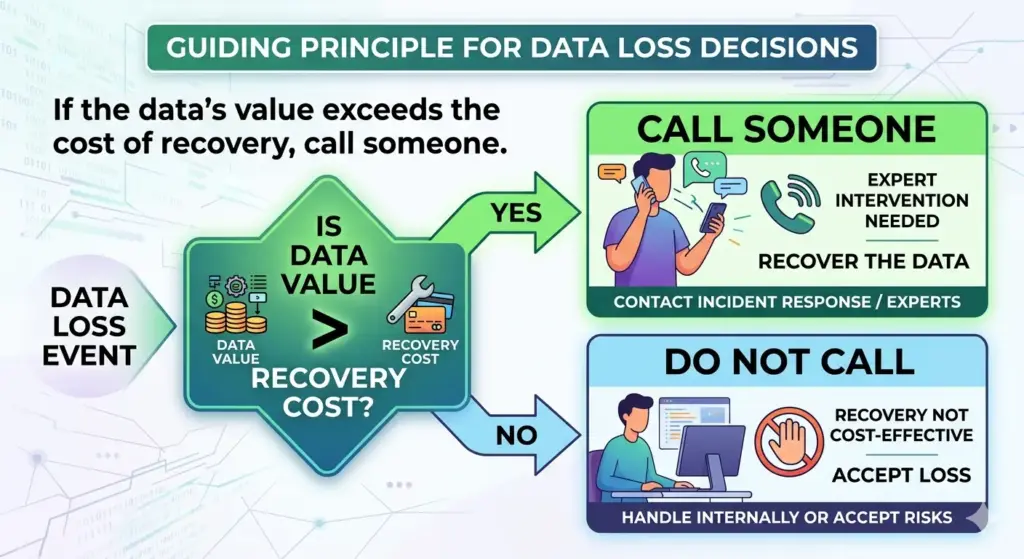
The threshold for professional help is simpler than most people think: if the data’s value exceeds the cost of recovery, call someone. Two other triggers — the storage device is making clicking or grinding noises (physical damage), or multiple files across the same drive are corrupting simultaneously (drive-level failure). Don’t keep attempting DIY repairs on a physically failing drive. Every read attempt accelerates degradation. Shut it down, image the drive if possible, and hand it to a specialist.
“Common causes of Excel file corruption include sudden system crashes, Excel shutdowns during saves, incompatible file formats, problematic add-ins, or even virus infections. Corruption may appear as unreadable content, broken formulas, or missing data.”
— Excel Insider, Data Recovery Specialists
Tips for Maintaining Healthy Excel Files
The most efficient way to handle corruption is to never face it in the first place — because even when you know how to fix corrupt excel file errors, recovery still costs time. A few deliberate habits — none of them expensive or time-consuming — cut corruption risk dramatically. Here’s what actually works in practice.
“The goal of data recovery is not just to retrieve files — it’s to understand what failed and why, so the same failure doesn’t repeat.”
— Jim Reinert, Senior Director at Ontrack Data Recovery, Ontrack Technical Blog
Regular Backups and Version Control
AutoSave alone isn’t a backup strategy. It saves over the same file, meaning if corruption happens mid-session, AutoSave can overwrite a healthy version with a broken one. The real solution is versioned backups: enable “Always create backup” in Excel (File → Save As → Tools → General Options → check the box), which creates a .xlk companion file every time you save. Pair that with OneDrive or SharePoint’s built-in version history — Microsoft 365 keeps up to 500 versions by default. Name backup copies with dates and timestamps (Budget_2026_0310_v2.xlsx) so you can pinpoint exactly which version predates a problem.
Using Reliable Storage Solutions
Where you store Excel files matters as much as how you save them. Large-scale studies of storage reliability show that hardware failure remains one of the leading causes of data loss in organizations, accounting for roughly 40–44% of incidents according to data-recovery industry statistics. Avoid editing directly from network shares whenever possible; files saved over unstable connections corrupt at a measurably higher rate than those saved locally and then synced. For team environments, SharePoint or OneDrive for Business provides both reliable storage and granular version history.
Best Practices for Excel File Management
A few operational habits round out a solid protection strategy:
- Keep file sizes under 15 MB: Split large workbooks into smaller linked files. Oversized spreadsheets corrupt more often and recover less completely when they do.
- Close Excel properly: Always use File → Close, not the X button while other processes are running. Force-closing Excel mid-calculation is a top corruption trigger.
- Vet add-ins carefully: Untrusted or outdated COM add-ins destabilize Excel sessions and contribute to file corruption. Audit your add-ins list quarterly.
- Keep Excel updated: Microsoft patches file-handling bugs regularly. Running a version that’s 2+ years behind current means you’re carrying known vulnerabilities.
- Use antivirus software: Malware accounts for roughly 7% of all data loss incidents — small percentage, but entirely preventable with basic protection.
You can find more detailed guidance in our article on how to prevent Excel file corruption — it covers large-file management and shared workbook safety in depth.
Frequently Asked Questions About Excel File Repair
These are the questions that come up most often — answered directly, without the filler.
How Safe Are Online Repair Tools?
Generally safe for non-sensitive files, but verify the privacy policy first. Reputable services like Recovery Toolbox’s online tool encrypt file transfers over HTTPS and delete uploaded files within 24 hours. That said, if your spreadsheet contains employee data, financial records, or any information governed by GDPR or HIPAA, a locally installed tool is the safer option. The risk isn’t that these services are malicious — it’s that any data sent to a third-party server is outside your control from the moment it leaves your machine.
Can I Recover Data from Severely Corrupted Files?
Yes, often — but recovery completeness depends on the damage type. Logical corruption (broken file structure, bad headers) responds well to professional repair tools, which frequently recover 80–100% of data. Specialized tools designed to fix corrupt excel file structures can often recover most of the workbook. Physical damage to the storage device itself is harder, and recovery rates have actually been declining: Recovery success has also been declining in recent years. A 2024 ransomware survey reported that data recovery rates fell from 87.4% in 2021 to about 66.3% in 2024, partly due to more advanced encryption and attack techniques. — partly because newer drive technologies (NVMe SSDs) are harder to recover from than traditional HDDs. Start with software tools; escalate to professional services only if software fails.
Is it Possible to Prevent File Corruption Entirely?
No — not entirely. Hardware fails, power cuts happen, and software crashes without warning. What you can do is reduce the probability to near-zero through consistent habits: versioned backups, reliable storage, proper file closing, and kept-current software. Think of it less as “prevention” and more as “making corruption survivable.” With solid backups in place, a corrupted file becomes a minor inconvenience rather than a crisis.
What Is the Difference Between XLS and XLSX Repair?
XLS is Excel’s legacy binary format (pre-2007), while XLSX is the modern XML-based format introduced with Excel 2007. XLSX files are technically ZIP archives containing XML files, which makes them somewhat easier to partially recover manually — you can unzip and inspect the raw XML. XLS files use a binary structure that requires specialized parsing tools. Most professional excel repair tools for xls and xlsx files handle both formats, but confirm compatibility before purchasing — some budget tools only support XLSX.
Where Should I Start If My Excel File Corrupted and Cannot Be Repaired by Built-in Tools?
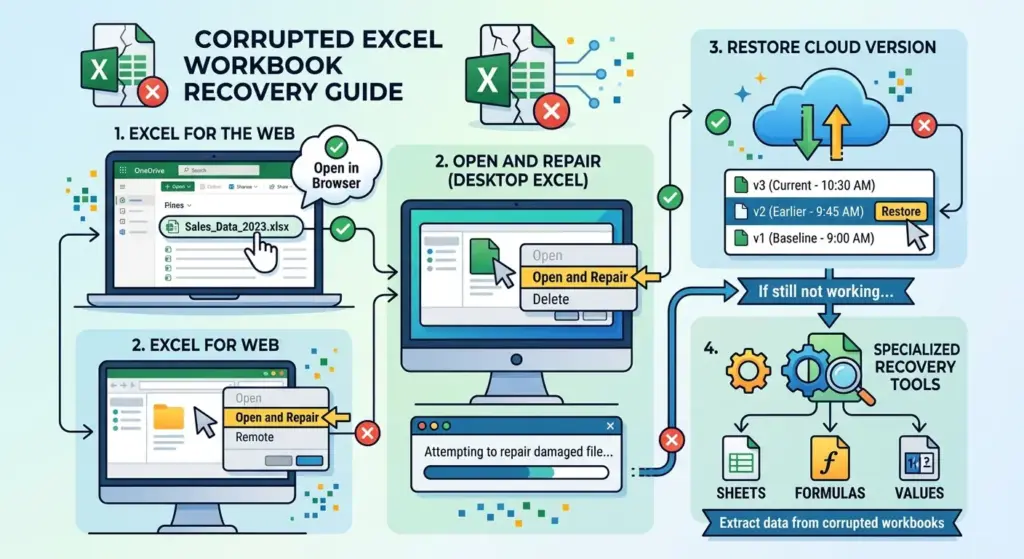
Start with a file copy, then escalate systematically. First try Excel’s Open and Repair on a copy. If that fails, attempt the SYLK save workaround or opening via Google Sheets. Still failing? Upload to a reputable corrupted excel file repair online free service for a quick diagnostic. If the free online tool can’t recover it either, move to paid software like Recovery Toolbox for Excel or DataNumen. Only if all software options are exhausted — or if the storage device itself is suspect — should you escalate to a professional data recovery service.
Now you can download our Corrupted Excel File Recovery Checklist to follow a safe recovery process and avoid making the problem worse. The checklist walks you through the exact order of repair methods — from built-in Excel tools to advanced recovery options.

Have you faced a corrupted Excel file that seemed beyond saving? Which method pulled your data back — or what’s the most creative workaround you’ve tried? Share your experience in the comments below. Your solution might be exactly what someone else needs right now.
Sources
- 2024, USA, Sunnyvale, CA, Proofpoint, 2024 Data Loss Landscape Report
- 2024, USA, Chicago, IL, DataNumen, Data Loss Statistics Report 2024
- 2024, Germany, Hannover, Hornetsecurity, Ransomware Survey 2024 – Data Recovery Trends
- Tim Berners-Lee, computer scientist, inventor of the World Wide Web and director of the World Wide Web Consortium, Quote on the value of data
- Microsoft Support Documentation Team, official technical documentation for Microsoft Excel, Repair a corrupted workbook