Trying to download excel should be simple, yet plenty of people still hit the same wall: confusing plans, wrong installers, expired trials, and a file that won’t open when they finally need it. Many users search how to download excel quickly, but without guidance, even a simple download excel process can turn confusing. In 2026, that kind of friction costs real time—sometimes a lost report, a missed deadline, or a badly timed repair job when a spreadsheet goes corrupt. If you want clear answers on Windows setup, Mac installation, Excel Online access, mobile options, and smarter Excel file handling, you’re in the right place. One practical rule matters from the start: get the program from official Microsoft sources, not random download pages. That one choice prevents a surprising number of headaches later.
Want to avoid installation mistakes and file issues from the start? Download this simple step-by-step checklist at the end of the article and make sure your Excel setup is safe, correct, and ready for real work:
Understanding Microsoft Excel and Its Uses
Before you download excel, it’s worth understanding how the tool fits your workflow. This section covers the basics, the industries that rely on it, and the business value that keeps spreadsheets alive even as newer tools show up every year.
A quick introduction to Microsoft Excel, showing how spreadsheets work, where they’re used, and why businesses rely on them for organizing data, calculations, and everyday decision-making.
What is Microsoft Excel?
Microsoft Excel is Microsoft’s spreadsheet program for organizing data, calculating results, building charts, and tracking information over time. You can use it on desktop, on the web, or through the Excel app experience on mobile devices, depending on your plan and device. For most users, the reason to download excel is simple: they need a familiar tool that can move from a quick budget to a heavy reporting workbook without much ceremony. In most cases, people download excel to handle both simple and complex data tasks in one place.
And the program still matters because it’s flexible. One sheet can hold a home budget; another can run inventory or forecast sales. Microsoft and LinkedIn’s 2024 Work Trend Index found that “75% of knowledge workers use AI at work”, highlighting how quickly AI tools are becoming part of everyday workflows—and why spreadsheet skills still matter for verification and control.
- Grid-based analysis: the program makes rows, columns, and formulas easy to inspect, which is why users trust it for hands-on checking.
- Broad compatibility: A standard Excel file can be shared across teams, devices, and cloud storage without much retraining.
- Layered complexity: You can start with sums and filters, then move into PivotTables, charts, and macros when the work grows.
This flexibility is a major reason why users continue to download excel instead of switching to niche tools.
Common Uses of Excel in Various Industries
The program shows up almost everywhere, though the way people use it changes by industry. Finance teams model cash flow, retailers track stock, contractors estimate costs, and teachers maintain grades or schedules. In healthcare, research, and legal work, spreadsheets often act as staging areas before data moves into a larger system.
That range is exactly why so many searches for microsoft excel free download keep happening. People don’t always need a giant data platform; often they need something they can open today and understand in ten minutes. That’s exactly why so many professionals choose to download excel instead of learning entirely new systems.
“Data has become so fundamental to business that it is described as the ‘new oil’”
— The Economist
Spreadsheets are still one of the most common places where raw business data becomes usable.
The Benefits of Using Excel for Your Business
Businesses stick with this program because it’s fast to deploy, familiar to hire for, and good at turning messy numbers into decisions. Small teams often don’t need a custom platform on day one. They need workable forecasting, reporting, and analysis this afternoon. For many teams, the decision to download excel comes down to speed and familiarity.
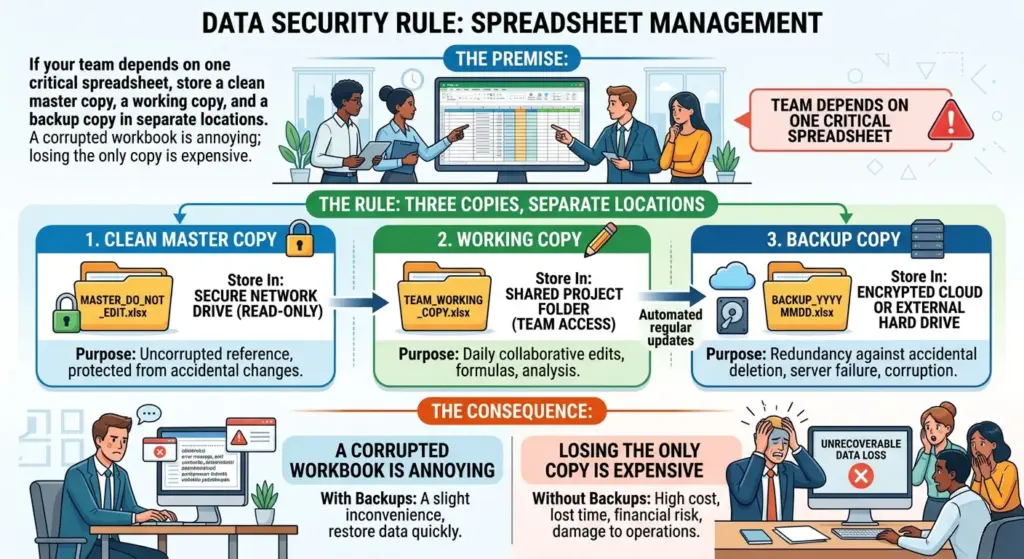
There’s also a recovery angle that people skip until it hurts. A well-managed file—clear names, versioning, and backups—is easier to repair when formulas break, sheets vanish, or the workbook becomes unstable. For a site focused on spreadsheet recovery, that’s the real-world difference between a quick fix and a long weekend.
How to Download Excel: Step-by-Step Guide
Now to the part most readers actually want: how to get the program onto a device without downloading the wrong thing. The next three subsections walk through Windows, Mac, and web access so you can choose the right route instead of bouncing between product pages.
Downloading Excel on Windows
If you want the desktop version, the safest move is to download excel through Microsoft 365 or a licensed Office purchase tied to your Microsoft account. Avoid “free installer” sites. They’re a common source of fake bundles, outdated builds, and malware.
- Go to Microsoft’s official Microsoft 365 or Excel page. Sign in with the Microsoft account tied to your subscription or purchase. If you’re comparing plans, check whether desktop apps are included before you proceed.
- Choose the install option for Microsoft 365 apps. On most Windows setups, installs alongside Word and PowerPoint. That’s normal, and it saves time later if you use more than one app.
- Run the installer and stay online. The setup process usually streams files from Microsoft servers, so unstable internet can slow things down or pause installation.
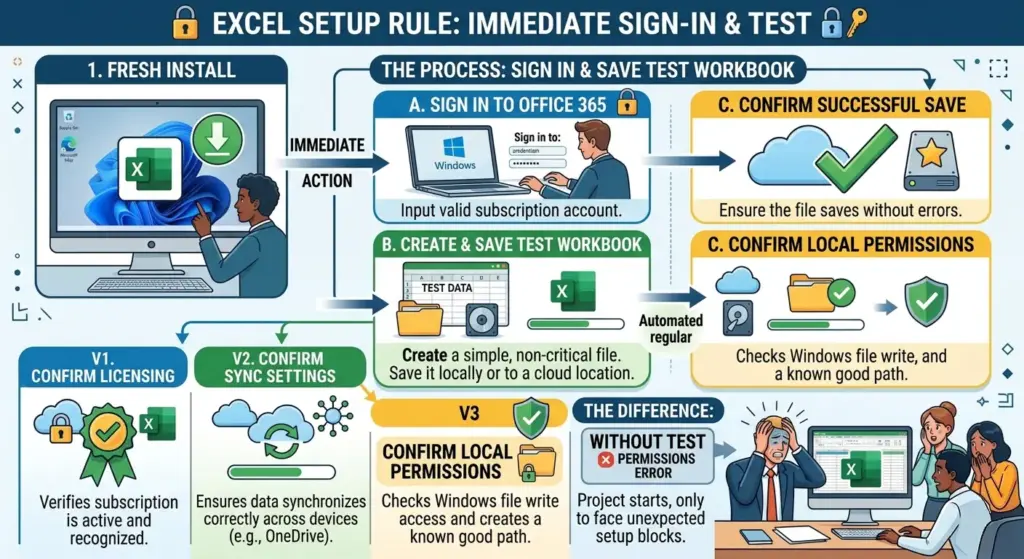
- Open Excel and activate it. Sign in when prompted. If the license is valid, activation should happen automatically within moments.
- Create and save a test workbook. This sounds small, but it confirms the install, autosave behavior, and default save location before your first serious Excel file goes in.
Installing Excel on Mac
Mac users follow a similar path, though permissions and file locations can feel a little different. Use the official Microsoft installer, sign in, and let macOS finish its security prompts instead of clicking past them in a rush.
If Excel won’t open after installation, check three things first: your macOS version, your Microsoft 365 entitlement, and whether corporate security software is blocking the app. In practice, one of those explains a lot of “Excel won’t launch” complaints.
- Use your Microsoft account portal: It keeps your installation tied to your actual license and device count.
- Allow requested permissions carefully: Excel may need file access to open, edit, and save workbooks where you expect.
- Update after install: A fresh install isn’t always the latest build, and updates can fix crashes or compatibility problems.
Accessing Excel Online
If you don’t want to install anything, Excel for the web is the fastest route. Microsoft says users can get free access to Word, Excel, and PowerPoint on the web, and its product page says Excel for the web is free to use online. That makes it a very real option for light editing, collaboration, and quick file checks. If you don’t want to download excel, the web version is a fast alternative.
Here’s the catch: web access isn’t the same as a full desktop install. Advanced macros, some add-ins, and complex workbook behaviors may work better—or only work—on desktop. Still, if your goal is to open an Excel file, make small edits, and share it quickly, the browser route is often enough.
Exploring Microsoft Excel Free Download Options
People search microsoft excel free download for a reason: they want legal, low-friction access. This section breaks down the realistic free options, where the limitations start, and when a free route stops being practical. Not sure which free version is right for you? This practical video explains the official, 100% legal ways to access and use Microsoft Excel completely for free.
Using Excel Online for Free
The cleanest free option is Excel for the web through a Microsoft account. You won’t need to download excel to your computer for basic spreadsheet work, and collaboration is built in. For students, occasional users, and anyone reviewing shared files, that’s often the sweet spot. In this case, you don’t need to download excel locally at all.
It also reduces local device issues. If a laptop is locked down by work IT or short on storage, browser-based Excel can be the easier answer.
| Criterion | Excel for the web | Desktop app |
|---|---|---|
| Cost to start | Free with Microsoft account | Usually requires Microsoft 365 or a paid license |
| Installation | No local install needed | Requires download and setup |
| Advanced features | Basic to moderate | Best for advanced formulas, macros, and add-ins |
| Collaboration | Excellent real-time sharing | Strong, especially with OneDrive, but depends on setup |
| Offline use | No | Yes |
So which one wins? For quick editing and free access, the web version is hard to beat. For power users, desktop Excel still owns the room.
Exploring Microsoft Office Free Trial
Another route is Microsoft’s free trial for eligible Microsoft 365 plans. Trial availability changes, and plan details differ, so always check the current Microsoft page before committing. Trials are useful if you need the full desktop experience to test formulas, templates, or larger workbooks before paying.
Be honest with yourself here. If you only need to view a file twice a month, the trial may be overkill. If you’re about to build reporting templates for a team, it’s a sensible test drive.
“Data is the new oil.”
— Clive Humby, British mathematician and data strategist
Maybe overquoted? Absolutely. Still, when your data lives in spreadsheets, the right setup matters because that “oil” is useless if you can’t open, validate, or recover it.
Comparing Free Alternatives to Excel
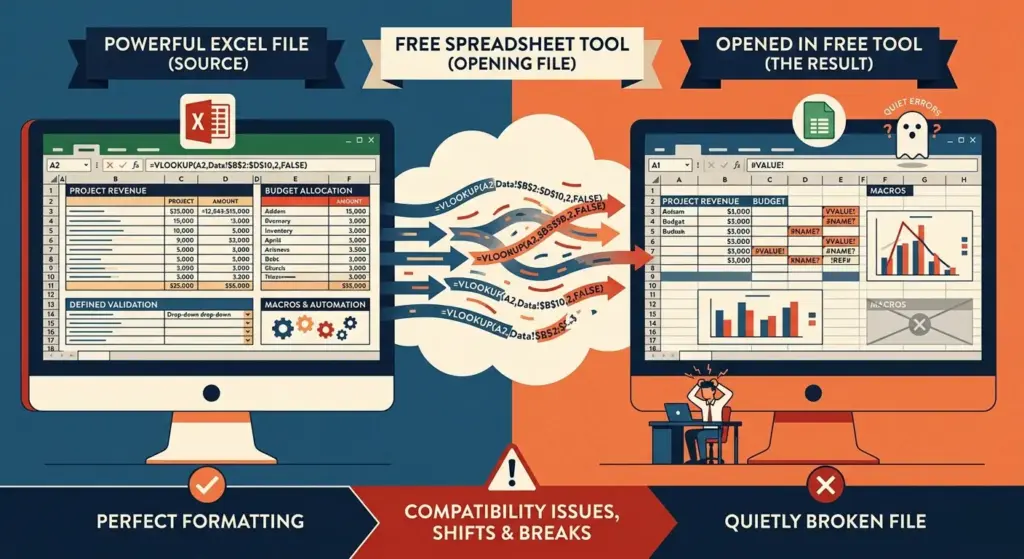
Free spreadsheet tools can work, but compatibility isn’t perfect. Formatting shifts, formulas behave differently, and a sensitive Excel file with macros or complex validation rules can break in quiet, annoying ways.
- Google Sheets: Great for browser collaboration, though advanced Excel features may not convert cleanly.
- LibreOffice Calc: Useful offline and free, but workbook fidelity can vary with heavier files.
- Apple Numbers: Friendly for Apple users, yet it’s not the best choice for business spreadsheets built around Excel conventions.
A 2024 study on spreadsheet self-efficacy found that knowledge sharing depends on self-confidence, perceived benefits, and social factors like trust and reputation among colleagues. Tools matter, but team habits matter too.
Getting Started with the Excel App
Desktop Excel gets most of the attention, but mobile use is now normal. This section covers how the Excel app works on phones and tablets, what it’s good at, and where small-screen productivity starts to feel cramped.
Downloading the Excel Mobile App
Mobile access has changed a bit. Microsoft support notes that old Windows mobile versions are no longer available, while current mobile productivity centers on iOS and Android apps under Microsoft 365 branding. So if you’re searching for the Excel app today, use the Apple App Store or Google Play and follow Microsoft’s official links.
That matters because fake mobile apps still exist. Don’t search blindly and tap the first green button you see.
Features of the Excel App
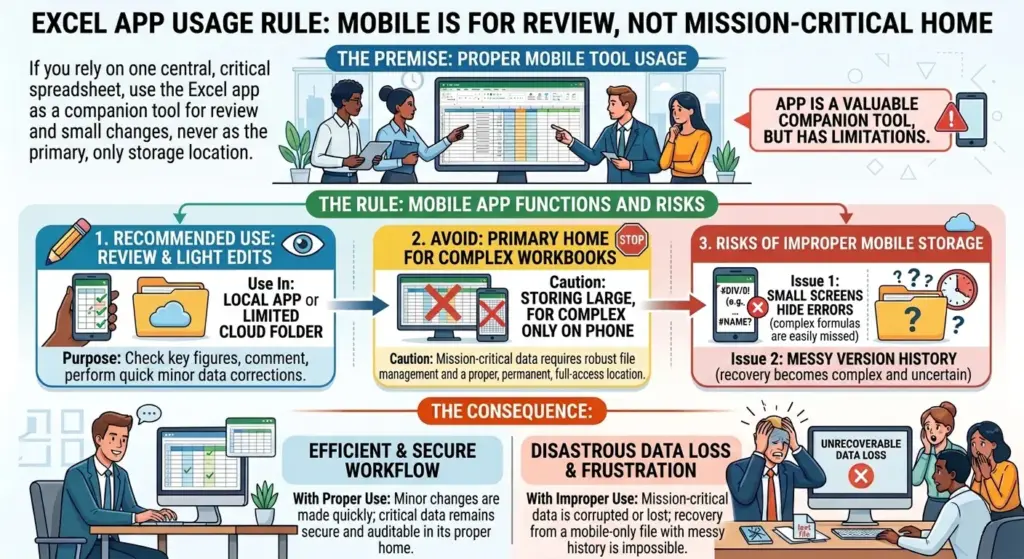
The Excel app setup on mobile is best for review, light editing, comments, and quick data entry. Microsoft support says the mobile app experience lets users work with Word, and PowerPoint from a single app, search files, comment, and collaborate in real time. For a lot of field work, that’s enough.
- Quick edits: Change values, review formulas, and fix obvious errors without opening a laptop.
- Cloud access: Pull files from OneDrive or SharePoint, which helps when the latest version isn’t stored locally.
- Camera and mobility perks: On some workflows, mobile tools can capture tables or notes faster than desktop entry.
Tips for Using Excel on Mobile Devices
Keep mobile work simple. Freeze the urge to do heavy cleanup on a phone while standing in a hallway. Usually, the smartest mobile session is a short one: check values, add comments, confirm totals, save, done.
Microsoft’s 2024 Work Trend Index found widespread workplace AI adoption, which raises the value of quick mobile review workflows—people increasingly need to verify outputs and share data from anywhere, not only at a desk.
Managing Your Excel Files Efficiently
Downloading is only half the story. What happens to each Excel file after that—where it’s saved, how it’s shared, and whether it’s protected—has a huge effect on performance, collaboration, and recovery odds when something breaks.
Best Practices for Organizing Excel Files
A chaotic folder is where spreadsheet trouble goes to hide. Use clear filenames with dates or version numbers, keep client or project folders separate, and archive finished work instead of letting everything pile into Downloads.
- Name files clearly: “Budget-Q2-2026-v03.xlsx” beats “final-final-new.xlsx” every time.
- Separate live and archived work: It reduces accidental edits to last month’s reporting workbook.
- Use cloud sync carefully: OneDrive helps with version history, though sync conflicts can still happen during simultaneous edits.
Sharing and Collaborating on Excel Documents
Collaboration is much better than it used to be, but shared workbooks still go sideways when teams mix local copies, email attachments, and cloud versions. Pick one source of truth. That’s the unglamorous fix that saves hours.
Most guides say “just share the link,” and honestly, that’s good advice if the workbook is cloud-based and everyone has permission. The problem starts when one person edits the attached copy while another edits the cloud version. Now you’ve got spreadsheet cousins pretending to be twins.
Securing Your Excel Files
Security isn’t just passwords. It’s also controlling access, removing stale copies, and deciding whether sensitive spreadsheets should be local, shared, or encrypted. If a file contains payroll data, pricing, or customer information, casual sharing is asking for trouble.

And from a repair perspective, protection helps integrity. Fewer uncontrolled copies means fewer chances for overwrite, accidental damage, and version confusion when a workbook needs recovery.
Advanced Tips for Excel Users
Once it is installed and your files are under control, the real gains come from using the software well. This section moves past downloading and into formulas, charts, and automation—the pieces that turn a plain workbook into a working system.
Essential Excel Formulas and Functions
You don’t need 200 functions memorized. You need the right handful used consistently: SUM, XLOOKUP, IF, COUNTIF, SUMIF, TEXT, LEFT, RIGHT, and IFERROR cover a lot of daily work. Learn those, and your spreadsheets stop feeling like fragile guesswork.
If you’re opening a damaged workbook, formula simplicity helps recovery. A clean chain of logic is easier to trace than a maze of nested experiments written at 11:47 p.m.
Data Visualization with Excel Charts
Charts help when the numbers are technically clear but visually useless. A trend line can expose a sales dip faster than rows of raw values, and a bar chart can make category comparisons obvious in seconds.
But don’t overdecorate. the program lets you add color, gradients, labels, shadows—the whole parade. Usually, a simpler chart tells the truth better.
Automating Tasks with Excel Macros
Macros save time when your steps repeat exactly: importing data, formatting weekly reports, or standardizing exports. If you regularly download excel files from another system and perform the same cleanup every Monday, a macro is a very reasonable fix.
A 2020 PubMed-indexed study showed that structured workflows can reduce manual effort and improve accuracy in complex search tasks, demonstrating how spreadsheet design directly affects efficiency. That’s the broader lesson: smart spreadsheet structure can cut both effort and mistakes.
Troubleshooting Common Excel Issues
Even a proper install can go sideways. This last core section covers the problems people hit most often—installation failures, broken workbooks, and slow performance—so you can fix the issue before it turns into data loss.
Resolving Installation Problems
If download excel completes but setup fails, start with the simple checks: stable internet, enough storage, the right Microsoft account, and no conflicting old Office installation. On managed work devices, admin policies can also block setup without saying so clearly.
- Restart first: It sounds basic because it is, but it often clears locked installer processes.
- Remove older Office remnants: Half-uninstalled suites can interfere with current Microsoft 365 installs.
- Check licensing: A missing entitlement can look like a broken install when it’s really an account mismatch.
Fixing Common File Errors
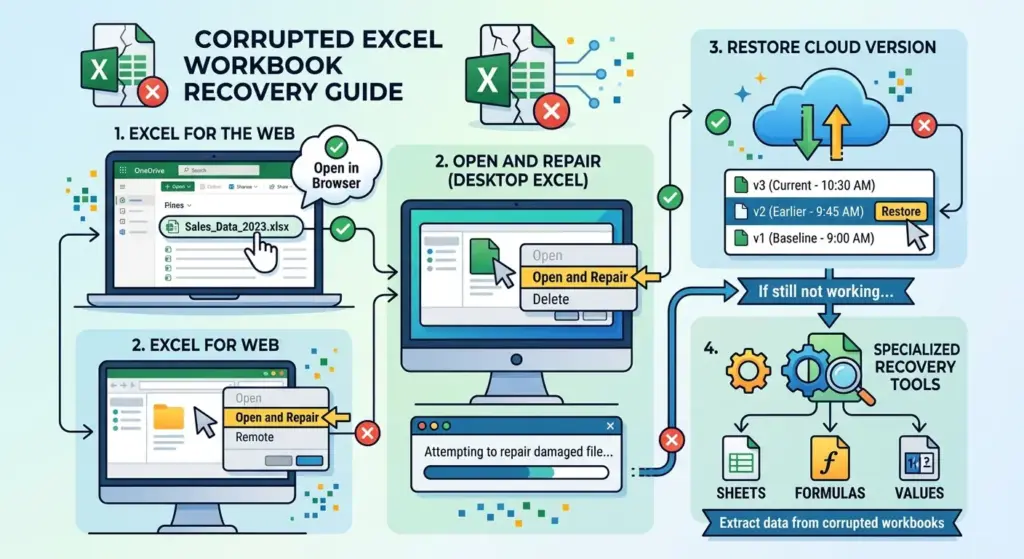
Some problems aren’t installation issues at all. The app opens, but the Excel file is damaged, unreadable, blank, or stuck in repair mode. When that happens, copy the file first and work on the duplicate, not the original.
Try opening the workbook in the web, using Open and Repair in desktop Excel, or restoring an earlier cloud version. If the file still won’t cooperate, specialized recovery tools may help extract sheets, formulas, and values from corrupted workbooks.
For a deeper look at how these tools actually work and what they can recover, check this breakdown of an Excel repair tool for XLS and XLSX files
If you’re dealing with severe corruption or repeated file errors, it may be worth exploring dedicated solutions in more detail. This step-by-step guide to Kernel for Excel Repair explains how advanced recovery tools scan damaged files and restore data, including charts, formulas, and structure.
Optimizing Excel Performance
Slow program usually comes from workbook weight: too many volatile formulas, bloated formatting, giant unused ranges, excessive conditional formatting, or links to external sources that keep timing out. It’s less glamorous than “your PC is old,” but far more useful.
Bottom line: reduce clutter before you replace hardware. And if a workbook becomes unstable after heavy edits, save a new version immediately so one bad session doesn’t take down the only working file.
FAQ
What is the best way to download excel safely?
The best way is to use Microsoft’s official Microsoft 365 or Excel pages. That reduces the risk of fake installers, outdated versions, and malware bundled with unofficial downloads.
How to download excel for free?
You can use Excel for the web for free with a Microsoft account. If you need the desktop version, check whether Microsoft is currently offering a trial for a qualifying Microsoft 365 plan.
Is it possible to open an Excel file without installing Excel?
Yes, you can often open an Excel file in Excel for the web. Some complex features may not behave exactly like the desktop app, but it works well for viewing, light edits, and sharing.
Excel for the web vs desktop Excel: which is better?
Excel for the web is better for free access and quick collaboration. Desktop Excel is better for advanced formulas, macros, add-ins, and heavier workbook repair or troubleshooting.
Where to store an important Excel file?
Store it in a trusted cloud location such as OneDrive plus a separate backup copy. For business-critical spreadsheets, keep versioned backups so you can recover faster if corruption or accidental overwrite happens.
What’s been your biggest Excel headache lately—installation trouble, a broken workbook, or a file that suddenly refused to open? Share the messy details; your fix might save someone else a lot of stress.
Download the full checklist here:

Sources
- 2024, Global, Microsoft & LinkedIn, Work Trend Index Report
- 2024, UK/USA, Microsoft Research, The Paradox of Spreadsheet Self-Efficacy: Social Incentives for Informal Knowledge Sharing in End-User Programming
- 2020, USA, biomedical research (indexed in PubMed), A Microsoft Excel Approach to Reduce Errors and Increase Efficiency in Systematic Searching
- Clive Humby, data scientist and architect of Tesco Clubcard analytics, Data is the New Oil (statement widely cited from industry presentations and interviews)
- The Economist, global media publication, Turning Data Ability into Adaptability