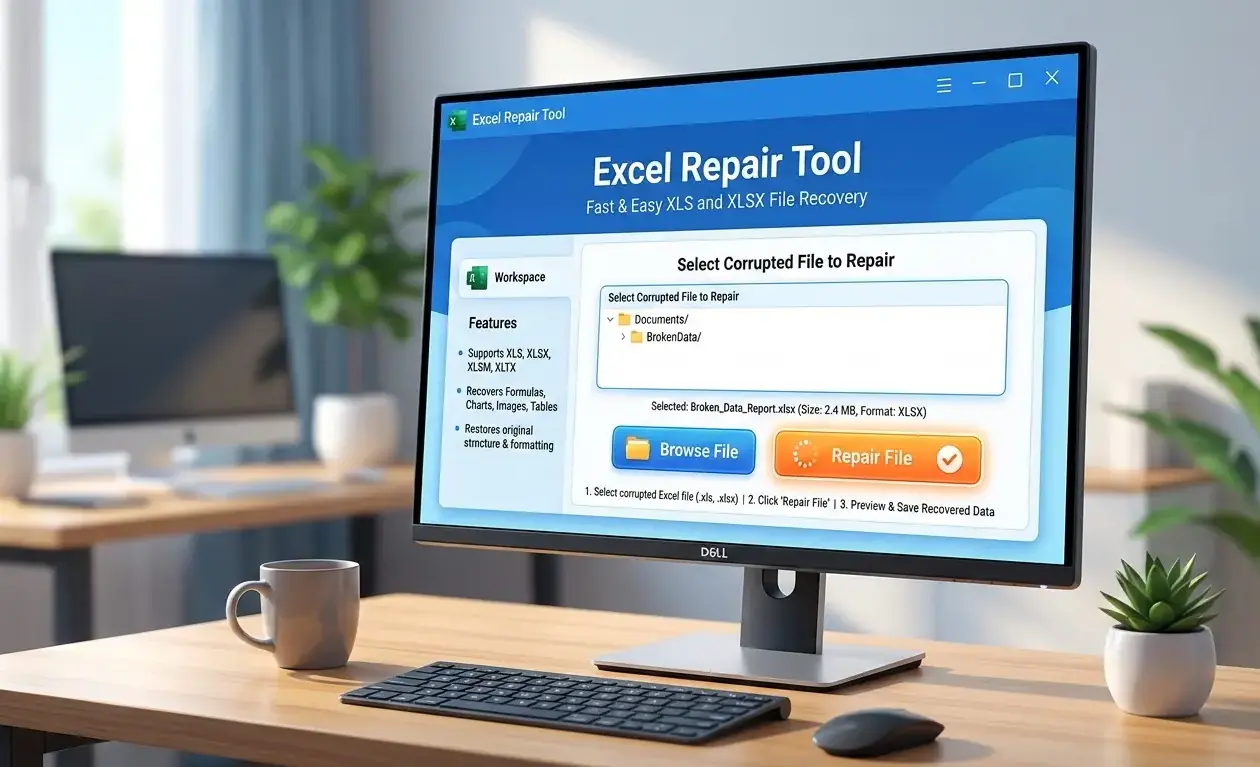
Your screen freezes, an error pops up, and just like that, a 40-page financial model vanishes into thin air. Finding a capable excel repair tool for xls and xlsx files isn’t just a technical errand right now—it’s a massive rescue operation for your career. You’re probably staring at a corrupted spreadsheet this very second, wondering if those hours of manual data entry are gone forever. We need to talk about file corruption, batch repair solutions, and why native recovery features rarely cut it. If you don’t secure an effective excel repair tool for xls and xlsx files immediately, those broken formulas and scrambled datasets will likely become permanently unreadable by tomorrow morning.
If you’re dealing with a corrupted spreadsheet right now, it’s easy to make mistakes that permanently destroy recoverable data. Before attempting any repair, download our Excel File Recovery Checklist to follow the safest recovery steps and avoid actions that could overwrite your damaged file.
Understanding the Need for Excel Repair Tools
Spreadsheets hold the fragile lifeblood of modern business operations, yet they remain surprisingly unstable under heavy loads. When native applications fail to open your data, an excel repair tool for xls and xlsx files steps in to bridge that terrifying gap.
If you’ve never seen the recovery process in action, this quick tutorial shows how corrupted XLSX files can be repaired step-by-step using a dedicated recovery tool, helping illustrate why these utilities are often essential for damaged spreadsheets.
Common Causes of Excel File Corruption
You didn’t do anything wrong, but the document refuses to open. Power surges during a routine save operation ruin the underlying XML headers instantly. Finding out why requires tracing the exact moment of failure, which isn’t always obvious.
- Unexpected Power Outages: Sudden shutdowns while your drive writes data corrupt the underlying structure immediately.
- Bloated File Sizes: Documents exceeding 50MB with complex cross-sheet formulas frequently crash the application’s memory allocation.
Extremely large workbooks can also trigger memory-related errors in Excel. One of the most common examples is the “Excel cannot complete this task with available resources” message, which appears when the application runs out of memory while processing heavy spreadsheets. If you encounter this issue, this guide explains several ways to resolve it. - Network Drops: Saving directly to unstable shared drives disrupts the file transfer packet sequence, leaving partial files.
- Add-in Conflicts: Third-party extensions often overwrite core application files, causing unexpected read and write errors.
In some cases, the spreadsheet itself may not be completely lost. Excel often creates temporary autosave files in the background during editing sessions. If the crash occurred before the file was fully written, it may still be possible to recover unsaved data from these temporary files. A detailed walkthrough of this method is explained here
Impact of Corrupted Excel Files on Businesses
A broken spreadsheet isn’t merely an annoying IT ticket. It means payroll gets delayed, client reports get missed, and supply chains stumble. According to widely cited industry estimates originally attributed to Gartner research, the average cost of IT downtime is about $5,600 per minute, though the figure varies by company size and industry.. Relying on an enterprise-grade excel repair tool for xls and xlsx files mitigates this exact financial bleeding.
Why Manual Repair Methods Often Fail
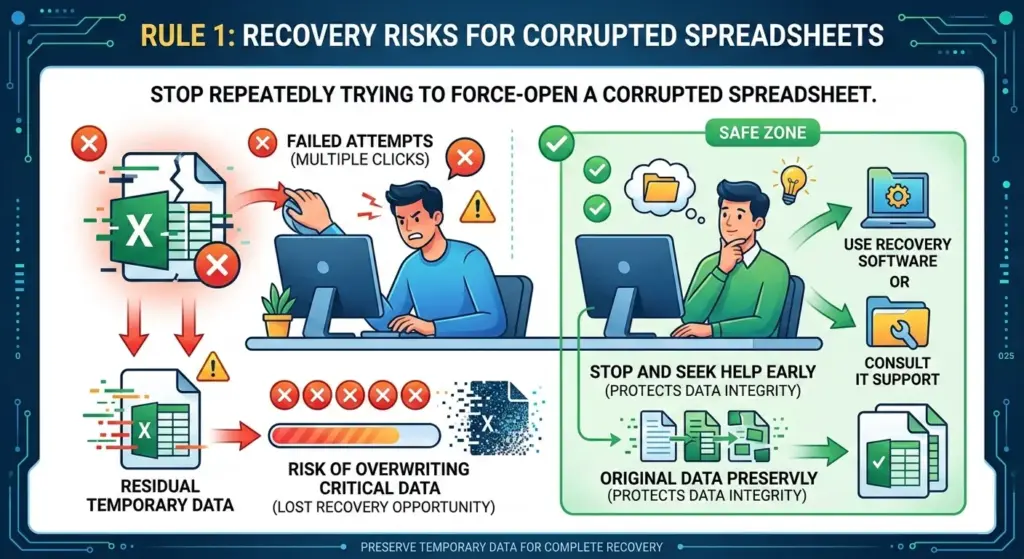
Trying to open it in Safe Mode rarely works. Microsoft’s built-in repair function tries its best, but usually strips away your intricate formatting. It leaves a raw, useless text dump.
Features to Look for in an Excel Repair Tool
Not all recovery software behaves the same way when faced with a shattered workbook. You need specific capabilities from your chosen excel repair tool for xls and xlsx files to ensure data returns perfectly intact.
Compatibility with XLS and XLSX Formats
You probably have an archive of older documents scattered across older hard drives. A proper excel repair tool for xls and xlsx files handles the legacy binary format from older software versions just as flawlessly as modern XML structures. If your software ignores outdated extensions, your historical data is trapped.
Batch Repair Functionality
Imagine a ransomware attack hitting your entire finance folder on a Friday afternoon. Fixing files one by one would take weeks, and nobody has time for that manual slog.
- Folder-Level Scanning: Select an entire directory and let the software queue dozens of broken sheets automatically.
- Unattended Processing: Start the recovery protocol and walk away while the system rebuilds multiple files simultaneously.
- Consistent Output Rules: Save all recovered documents into a unified, clean directory without overwriting the damaged originals.
User-Friendly Interface and Ease of Use
Panic runs high when critical numbers vanish. You simply don’t have the mental bandwidth to learn a command-line interface. A modern excel repair tool for xls and xlsx files offers a simple, highly visual three-click process.
“If a system is difficult to use, people will simply avoid it.”
— Jakob Nielsen, usability researcher and co-founder of Nielsen Norman Group

Advanced Repair Capabilities and Speed
Not all recovery tools are built the same. When a workbook becomes severely corrupted, basic repair functions are often not enough. A powerful excel repair tool for xls and xlsx files should be capable of scanning deeply damaged files and reconstructing complex structures such as formulas, pivot tables, charts, and formatting.
Speed is equally critical during recovery. In business environments, every minute of downtime can mean lost productivity or delayed decisions. Advanced repair engines use optimized scanning algorithms that analyze file structures quickly while maintaining a high recovery accuracy rate.
The best tools combine deep-repair functionality with fast processing, allowing users to recover large spreadsheets in minutes instead of hours. This balance between capability and speed is what separates professional-grade recovery software from basic repair utilities.
Introduction to Stellar Repair for Excel
When searching the market for a dependable lifeline, one specific brand repeatedly dominates IT forums and expert discussions. Using an advanced excel repair tool for xls and xlsx files like this changes the entire recovery paradigm.
See how a specialized recovery utility works in practice. This short walkthrough demonstrates the interface, scanning process, and preview features that make Stellar Repair for Excel a popular choice among professionals handling corrupted workbooks.
Overview of Stellar Repair for Excel
This isn’t just another generic undelete utility that scrapes plain text. Choosing stellar repair for excel means you’re rebuilding the complicated internal architecture of the document. It pieces together raw data blocks that a lesser excel repair tool for xls and xlsx files simply ignores.
Key Features and Benefits
What makes it actually work? It digs into the hidden layers of your file to pull out what matters.
- Complex Formula Preservation: It recovers intense engineering and financial formulas without reducing them to static text values.
- Formatting Retention: Conditional formatting, custom cell rules, and specific color codes return exactly as you left them yesterday.
- Visual Chart Recovery: Embedded visual charts and pivot tables get extracted perfectly, which saves you hours of manual recreation.
User Testimonials and Reviews
Users across Reddit share the exact same relief. They tried free tricks, failed miserably, booted up stellar repair for excel, and got their tax documents back in three minutes. That’s precisely why this specific excel repair tool for xls and xlsx files maintains sky-high ratings among financial analysts.
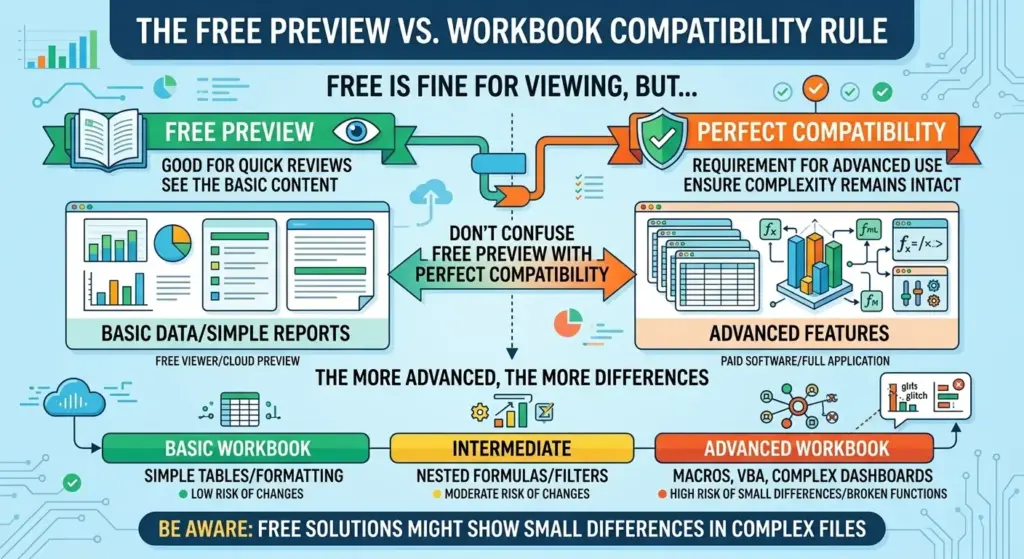
Microsoft documentation notes that Excel includes built-in recovery mechanisms, but severely damaged files may still require specialized recovery methods beyond standard repair tools.
Step-by-Step Guide to Repairing Excel Files
Theory doesn’t get your spreadsheets back. You need a concrete, actionable roadmap to run your excel repair tool for xls and xlsx files without making the situation worse.
How to Install and Set Up the Tool
Download the installer directly from the official developer site. Don’t rely on third-party download portals because they frequently bundle malware. Install your shiny new excel repair tool for xls and xlsx files on a completely different drive than where your corrupted files live.
Step-by-Step Repair Process
Here is exactly how you handle the crisis step by step.
- Launch the Application: Open your newly installed excel repair tool for xls and xlsx files and completely close out of Microsoft Office.
- Select the Damaged File: Use the built-in browser to locate your broken document.
- Initiate the Deep Scan: Hit the repair button to let the software bypass the broken headers and read the hexadecimal data.
- Verify the Preview: Look closely at the preview window to ensure your missing tabs and formulas actually populate.
- Export the Data: Save the restored information to a fresh, clean folder on your desktop.
Tips for Achieving the Best Repair Results
Close absolutely everything else on your PC. A robust excel repair tool for xls and xlsx files needs significant RAM to rebuild large datasets. The less your operating system does in the background, the faster stellar repair for excel operates.
Troubleshooting Common Issues
Even with a reliable repair tool, users may occasionally encounter minor problems during the recovery process. Most of these issues are easy to resolve once you understand their cause.
- The file doesn’t appear in the browser.
Make sure the file extension is supported (.xls or .xlsx). If the document still doesn’t appear, try copying it to a different folder and reopening the excel repair tool for xls and xlsx files. - The scan takes too long.
Large or heavily corrupted spreadsheets require deeper structural analysis. Close unnecessary applications to free up RAM and allow the repair engine to work faster. - The preview window is empty or incomplete.
This usually means the file structure is severely damaged. Run the scan again using the deep-repair option if available. Sometimes a second pass allows the software to reconstruct additional data blocks. - The repaired file won’t open in Excel.
Save the recovered file to a new location and ensure Microsoft Excel is fully updated. In rare cases, opening the file in compatibility mode can also resolve formatting conflicts.

By understanding these common scenarios, you can use your excel repair tool for xls and xlsx files more effectively and increase the chances of a successful recovery.
Comparing Excel Repair Tools: Stellar vs. Competitors
You have plenty of software options floating around the internet. Understanding how your chosen excel repair tool for xls and xlsx files stacks up against alternatives ensures you aren’t wasting cash.
Performance and Reliability
Basic utilities scrape plain text and permanently drop your cell borders. But stellar repair for excel reconstructs actual file metadata natively. Other programs stumble heavily with encryption, making this specific excel repair tool for xls and xlsx files far superior.
Let’s look at exactly how the top contenders handle catastrophic data loss scenarios.
| Formula Recovery | Intact and functional | Reduced to static numbers |
| File Format Coverage | XLS, XLSX, XLSM | Usually limited to XLSX |
| Heavy File Handling | Processes 100MB+ easily | Crashes frequently on large files |
The premium option clearly wins by preserving actual formulas rather than just dumping raw text onto your screen.
If you’re researching multiple recovery solutions before choosing a tool, it may also help to explore how other repair utilities work in practice. This detailed guide explains the recovery workflow, capabilities, and limitations of another well-known Excel repair utility.
Pricing and Licensing Options
Is a small licensing fee worth a week of your life? Probably. Honest pricing models for an effective excel repair tool for xls and xlsx
Research from the Ponemon Institute found that data-center outages can cost thousands of dollars per minute, highlighting the financial risks associated with lost or inaccessible business data.
files offer total transparency upfront, avoiding the hidden ransom fees found in “free” tools.
Customer Support and After-Sales Service
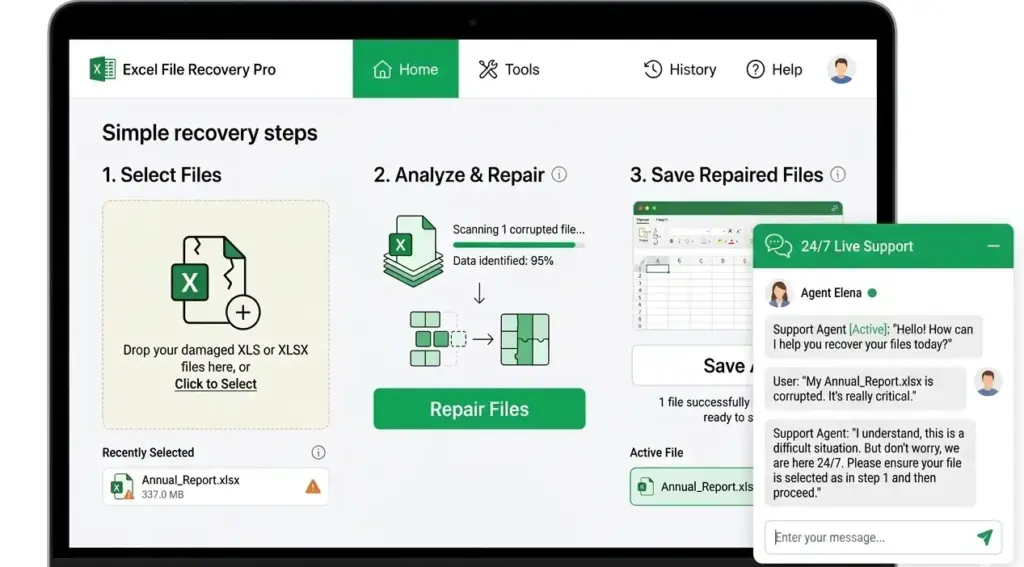
When a complex recovery stalls at 99%, you need a human being. The top-tier developers behind your excel repair tool for xls and xlsx files offer 24/7 live chat to bail you out when things get weird.
Maximizing the Value of Your Excel Repair Tool Investment
Fixing a broken spreadsheet feels amazing, but preventing the disaster is substantially smarter. Adopting daily data habits drastically reduces your chances of ever needing an excel repair tool for xls and xlsx files again.
Best Practices for Preventing File Corruption
Stop leaving massive workbooks open overnight. Windows updates force unexpected restarts, which destroys active memory states. Studies on spreadsheet reliability show that errors are extremely common. Research by Raymond Panko found that a large percentage of business spreadsheets contain significant errors, particularly in complex financial models.
Regular Maintenance and Updates
Adding “v2_final” to a filename isn’t real version control. You need actual redundancy.
- Cloud Syncing: Auto-save your active work directly to secure cloud drives to guarantee real-time fallback points.
- Incremental Saves: Use the dedicated “Save As” function daily to create physical, timestamped copies of your models.
- Hardware Isolation: Schedule weekly automated mirrors to an external, disconnected hard drive to dodge network-wide ransomware.
Integrating with Other Office Tools
Excel rarely operates in isolation. Most business workflows involve integration with other Microsoft Office applications such as Word, PowerPoint, and Outlook. When spreadsheets are embedded in reports or presentations, corruption can spread through linked objects and shared data connections.
Using a reliable excel repair tool for xls and xlsx files helps ensure that linked workbooks remain functional across the entire Office ecosystem. After repairing a file, always recheck any external references, embedded charts, or shared data sources to confirm that the connections remain intact.
Ensuring Data Security and Backup
Protecting your spreadsheets is just as important as repairing them. A strong backup strategy ensures that even if corruption occurs, you always have a fallback copy available.
- Cloud Syncing: Auto-save your active work directly to secure cloud drives to guarantee real-time fallback points.
- Incremental Saves: Use the dedicated “Save As” function daily to create physical, timestamped copies of your models.
- Hardware Isolation: Schedule weekly automated mirrors to an external, disconnected hard drive to protect against system failures and ransomware attacks.
FAQ About Excel Repair Tools
Can All Corrupted Files Be Repaired?
Not every corrupted spreadsheet can be restored. If the internal data structure is only partially damaged, a professional excel repair tool for xls and xlsx files can often reconstruct formulas, worksheets, and formatting.
However, if the file size shows 0 KB or the storage sector where the file was located has been overwritten, the original data is permanently lost and cannot be recovered.
Is It Safe to Use an Excel Repair Tool?
Yes, reputable recovery software is designed to work with a copy of the damaged file, leaving the original untouched. A reliable excel repair tool for xls and xlsx files scans the corrupted workbook, reconstructs the internal structure, and exports the recovered data to a new file.
To stay safe, always download the installer from the official developer website and avoid third-party download portals that may bundle unwanted software.
What Are the System Requirements?
Most modern repair utilities are lightweight and run on standard Windows systems. Typically, an excel repair tool for xls and xlsx files requires:
- Windows 10 or later
- At least 4 GB of RAM (8 GB recommended for large spreadsheets)
- Around 250–500 MB of free disk space for installation and temporary recovery files
- Microsoft Excel installed on the system for full compatibility
Meeting these basic requirements ensures the repair process runs smoothly, especially when recovering large workbooks with complex formulas and multiple sheets.
Join the Conversation!
Have you ever lost a massive spreadsheet right before a major client deadline? Which recovery method actually saved your skin? Share your horror stories and technical solutions in the comments below—your experience might just save someone else’s career!
This checklist walks you through the exact preparation, repair process, and verification steps used by professionals when restoring corrupted workbooks.

Sources
- 2024, USA, Encomputers Research Analysis, Small Business Cost of Downtime
- 2023, USA, Atlassian Incident Management Research, Understanding the Cost of Downtime
- 2016, USA, Ponemon Institute Research (referenced by FierceHealthcare), Data Center Downtime Costs Average $7,900 Per Minute
- 2024, USA, Microsoft Corporation, Repair a Corrupted Workbook
- 2008, USA, University of Hawaii, Department of Information Systems, Raymond R. Panko, What We Know About Spreadsheet Errors
- YouTube technical tutorial on Excel file recovery workflow, Repair and Recover Corrupt Excel XLSX File – Step-by-Step Tutorial
- Stellar Data Recovery, data recovery software developer, product demonstration video, Stellar Repair for Excel – Excel Repair Tool Walkthrough