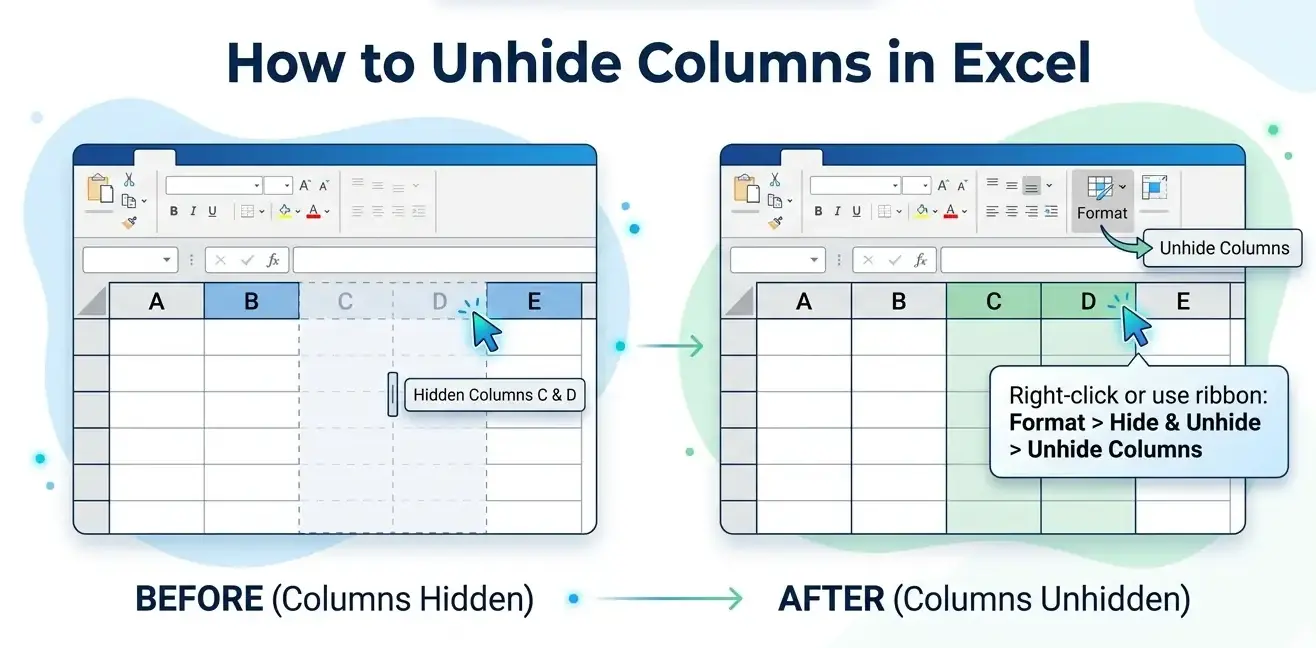
You open a worksheet, the numbers jump from column A to D, and suddenly your report makes no sense. If you’re trying to learn how to unhide columns in Excel, you probably need the fix fast — because one hidden field can wreck totals, break checks, and waste half an hour you didn’t plan to lose. Hidden columns, hidden rows, format settings, and sheet protection all play into this. The short version? Excel usually isn’t deleting your data; it’s just keeping it out of sight.
Understanding Hidden Columns and Rows in Excel
Before you click around blindly, it helps to know what Excel is actually doing when data disappears from view. This short tutorial explains how hidden rows and columns work in Excel, why they are used, and how to recognize them—so you can quickly understand what’s happening when data seems to disappear.
Why Columns and Rows Get Hidden
Most hidden data is intentional at first. Someone may hide helper formulas, old notes, intermediate calculations, or fields that don’t belong in a printout. In shared workbooks, people also hide rows to reduce clutter or keep attention on just the cells needed for a meeting.
But mistakes happen. A drag on a column boundary, a quick right-click, or a keyboard tap such as an unhide columns in Excel shortcut cousin like hide commands can change the layout in seconds. Microsoft notes that a double line between column headers usually signals a hidden column, which is your first clue that the data still exists.
- Manual hiding: A user hides a row or column on purpose to simplify the sheet.
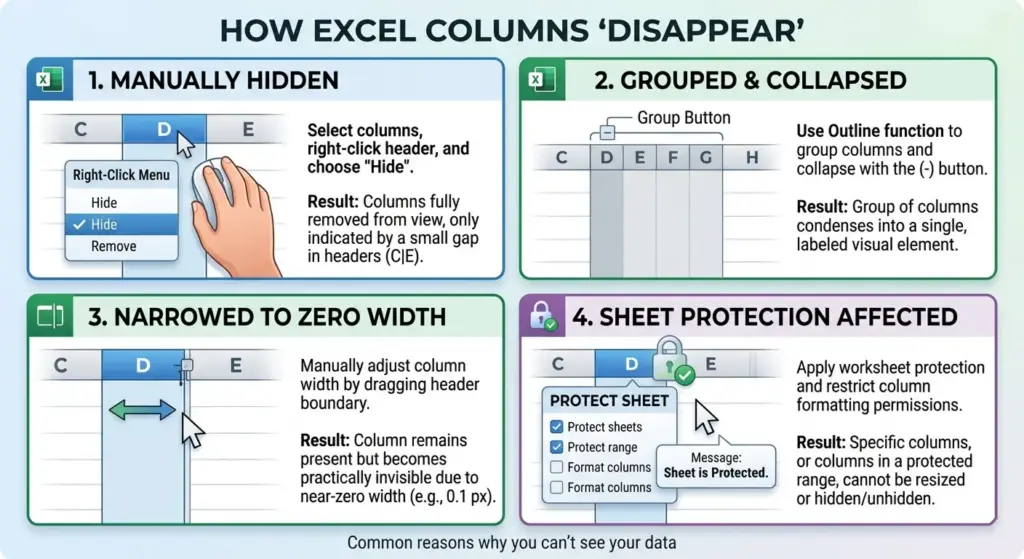
- Grouped sections: Outlines can collapse details and make it look like data vanished.
- Imported files: Reports exported from another system often arrive with odd formatting already applied.
- Shared edits: Teammates may hide fields for their own workflow and forget to restore them.
Common Scenarios for Hidden Data
You’ll usually notice the issue in budgets, inventory logs, payroll trackers, and exported CRM reports. Those files often contain support columns for formulas, IDs, or audit trails that someone wants off-screen but not deleted.
Another common mess appears after filtering, grouping, or copying visible cells only. People then assume data is missing when it’s simply hidden, collapsed, or outside the current selection area. That’s one reason searches for how to unhide columns in Excel and unhide rows in Excel stay so common: the problem looks bigger than it is.
“The goal is to turn data into information, and information into insight.”
— Carly Fiorina, Oracle OpenWorld speech
Impact on Data Analysis and Reporting
Hidden data doesn’t always break a workbook, but it can absolutely distort how you read it. A skipped input column may make a formula result look random. A hidden row in a monthly reconciliation can hide a duplicate charge or an unpaid invoice.
Step-by-Step Guide to Unhide Columns in Excel
Now for the practical part. If you want a reliable answer to how to unhide columns in Excel, these are the methods that work most often on Windows, Mac, and current Microsoft 365 versions.
Using the Ribbon to Unhide Columns
The Ribbon method is the safest choice when you’re dealing with unfamiliar workbooks. It’s visual, easy to confirm, and useful when several hidden columns sit together.
- Select the columns around the hidden area. Click the visible column before the gap and the one after it. If column B and C are hidden, select A through D.
- Go to the Home tab. In the Cells group, click Format. You’re looking for the Hide & Unhide menu.
- Choose Unhide Columns. Excel will restore the hidden columns between your selected visible ones.
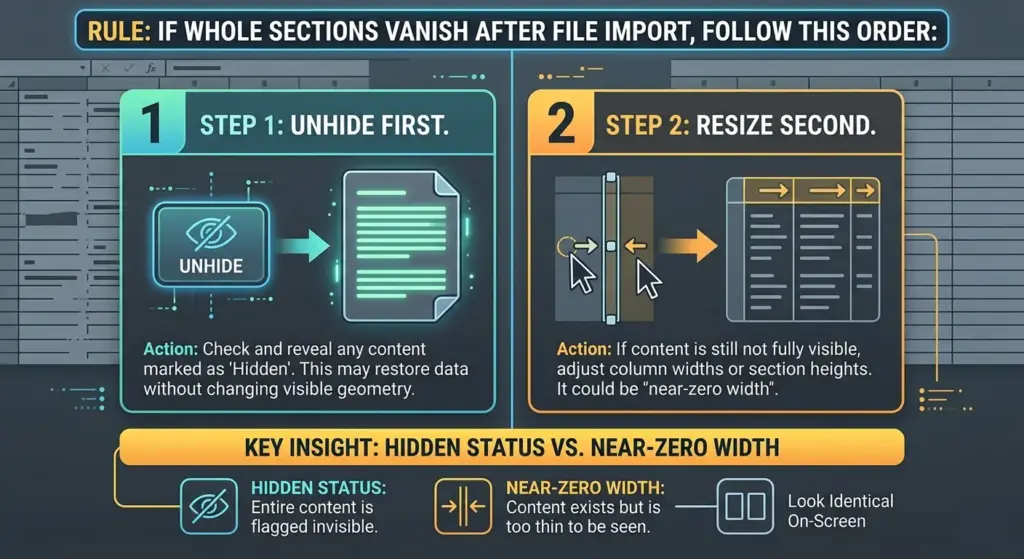
- Check width and formatting. Sometimes the column returns but stays very narrow, which makes it seem half-hidden. Drag the boundary if needed.
- Repeat for other gaps. Large imported files may contain several hidden sections, not just one.
Microsoft Support documents this exact approach and also notes that hidden columns are typically marked by a double line between headers.
Unhiding Columns via Right-Click
This is the quick mouse-based fix. Select the visible columns on both sides of the hidden section, right-click the header area, and choose Unhide. Done. It’s often the fastest answer to how to unhide columns in Excel when only one or two columns disappeared.
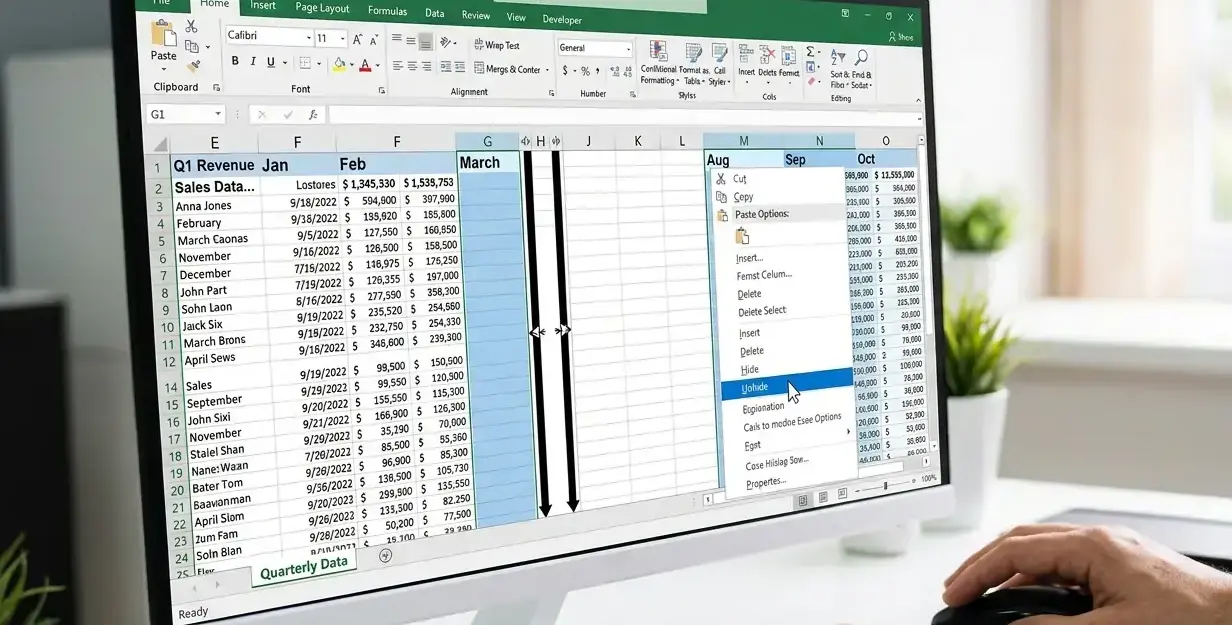
There’s a small catch, though. If the hidden column is the first one—column A—the normal selection trick gets awkward. In that case, use the Name Box, type A1, then go to the Format menu and unhide from there.
| Criterion | Ribbon Method | Right-Click Method |
|---|---|---|
| Best for beginners | Yes, because every option is visible | Usually, but only if you can select both adjacent columns |
| Speed | Moderate | Fast |
| Works well for multiple hidden columns | Yes | Yes |
| Helpful for hidden first column | Better | Less convenient |
If you’re unsure which route to use, start with the Ribbon. It takes a few extra clicks, but it’s harder to miss a setting there.
Unhide Columns in Excel Shortcut
If your hands are already on the keyboard, the standard unhide columns in Excel shortcut on Windows is Ctrl+Shift+0. Microsoft lists that shortcut directly in its Excel keyboard shortcuts page. For rows, the parallel shortcut is Ctrl+Shift+9.
Real talk: on some Windows systems, the column shortcut may conflict with regional or operating system settings. If it doesn’t respond, don’t assume the sheet is broken. Try the Ribbon method instead, or use right-click after selecting adjacent columns.
- For hidden columns: Select the surrounding columns, then press Ctrl+Shift+0 if your system supports it.
- For hidden rows: Select the rows above and below, then use Ctrl+Shift+9.
- For first-column issues: Go through the Format menu because the shortcut may not help enough.
Microsoft Support’s 2026 documentation still lists Ctrl+Shift+0 for unhide column and Ctrl+Shift+9 for unhide row in desktop Excel.
How to Unhide Rows and Columns Simultaneously
Sometimes the worksheet is a mess, not a single missing field. When both dimensions are hidden, it’s faster to reveal everything first and then clean up what you actually want visible. This video shows how to quickly unhide multiple rows and columns in Excel, including shortcuts and full-sheet methods—perfect when a worksheet is heavily hidden and needs a complete reset.
Using the Select All Button
Click the triangle at the top-left corner of the sheet, where row numbers and column letters meet. That selects the entire worksheet. Then go to Home > Format > Hide & Unhide, and choose both Unhide Rows and Unhide Columns as needed.
This is a practical answer for how to unhide rows and columns in Excel when you inherit a workbook built by three different people over two years. It’s blunt, yes—but very effective.
Employing the Format Menu
The Format menu works better than random dragging because it reveals structure deliberately. After selecting the full sheet, use it to restore hidden content, then inspect row heights and column widths. Sometimes the row or column isn’t technically hidden; it’s just set to a tiny size.
- Use Unhide Rows when row numbers skip.
- Use Unhide Columns when column letters jump.
- Check AutoFit if restored content still looks cut off.
Shortcut Methods for Unhiding
If you prefer keyboard flow, first select the full worksheet with the Select All button or a full-sheet selection pattern, then use row and column shortcuts where supported. For many users, this is the cleanest way to handle unhide rows in Excel and restore columns in one pass.
Microsoft’s guidance for hidden first rows or columns also recommends selecting the entire worksheet when precise selection is difficult, especially around row 1 or column A.
Troubleshooting: Issues with Unhiding Columns
If the normal methods fail, the worksheet usually has another condition layered on top—protection, display settings, or file damage. This is where people start thinking Excel lost data, when it often hasn’t.
Dealing with Protected Sheets
A protected worksheet may block formatting actions, including hide and unhide changes. If Unhide is grayed out, look at the Review tab and see whether the sheet is protected. You may need the password or help from the person who built the file.
That matters in finance and HR workbooks especially, where structure is locked on purpose. So if you can’t apply how to unhide columns in Excel steps even though you’re selecting the right range, protection is the first thing to check.
Addressing Excel Display Settings
Sometimes objects, outlines, frozen panes, or very narrow widths create the illusion of hidden data. Microsoft also documents a separate issue tied to hidden objects and the message “Cannot shift objects off sheet,” which can interfere with row and column actions in certain workbooks.
- Inspect column width: Drag borders manually to see whether the column is merely compressed.
- Review grouping symbols: A collapsed outline can mimic hidden columns.
- Check object visibility: Hidden shapes and comments can create odd worksheet behavior.
- Test another view: Freeze panes or split views may make navigation feel deceptive.
“Errors using inadequate data are much less than those using no data at all.”
— Charles Babbage, Passages from the Life of a Philosopher
Resolving Data Corruption Issues
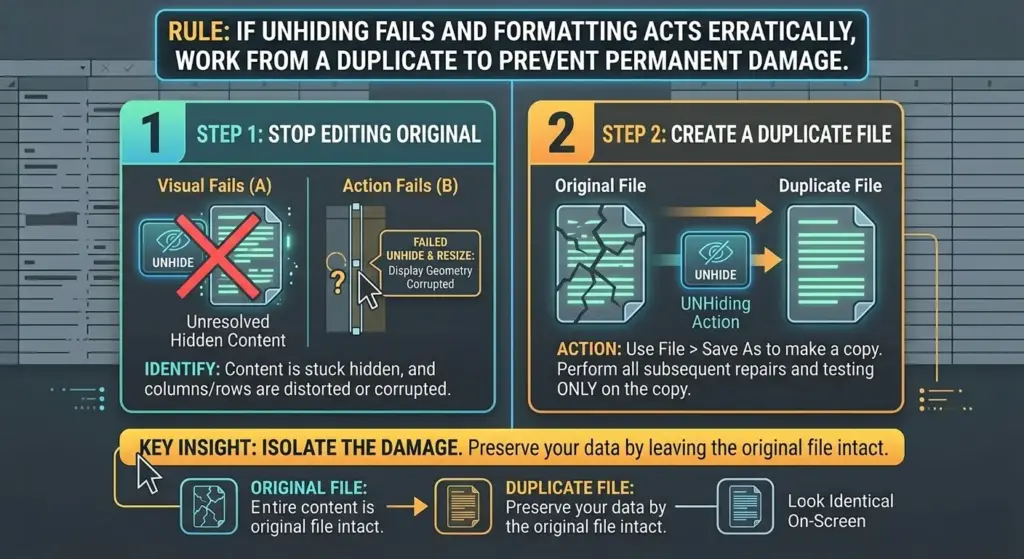
Here’s the unpleasant edge case: the problem may be file corruption, not a normal hide setting. If widths reset strangely, content won’t display after unhiding, or multiple workbook features misbehave at once, save a copy before doing anything else. If you’re not sure whether the issue is just hidden data or actual file damage, it helps to follow a structured recovery approach. This step-by-step guide on how to fix corrupt Excel file issues explains what to check first and how to safely restore workbook data without making things worse.
Download this checklist at the end of the article to quickly check hidden data, unhide columns/rows, and identify possible file corruption.
Then try opening the file in Excel desktop if you’re on the web version, use Open and Repair, or restore a previous version. If built-in recovery options don’t work, specialized tools may be necessary. For example, this ultimate guide to Kernel for Excel Repair breaks down how dedicated recovery software works, when to use it, and what results you can expect from damaged files.
For sites like excelrecoverytool.com, this is where recovery guidance becomes relevant—because a damaged workbook can mask itself as a simple visibility issue. If built-in recovery options don’t work, specialized tools may be necessary.
Advanced Tips for Managing Excel Columns and Rows
Once you know the basics, the next step is avoiding repeat chaos. These practices won’t just help with how to unhide columns in Excel; they make large spreadsheets easier to audit, present, and share.
Creating Custom Views
Custom Views let you save different display setups for the same worksheet. One view might show every support column for auditing, while another hides technical fields for a manager-facing summary. That’s cleaner than hiding and unhiding things over and over.
This works especially well for monthly reporting packs, where the same workbook serves analysts, reviewers, and executives. Your mileage may vary if the file relies heavily on tables or modern collaboration features, but for classic reporting sheets, it’s still handy.
Using Grouping and Outlining Features
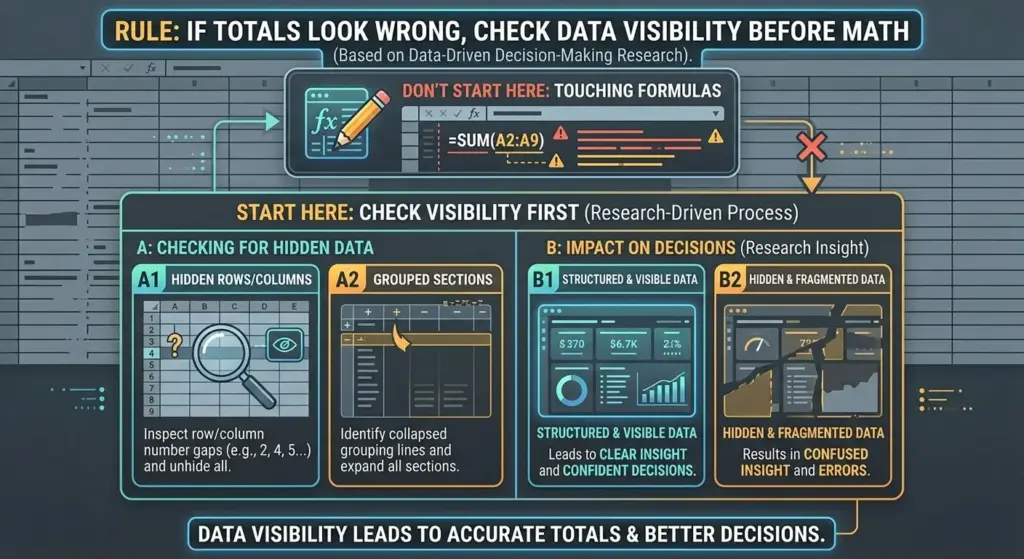
Most guides say hide columns whenever data feels noisy. I’d argue grouping is often better. Grouping keeps structure visible through outline controls, so readers know data is tucked away—not missing. Studies in data analysis and human–computer interaction show that clearer data structure and visibility reduce errors and improve interpretation accuracy in complex datasets.
- Use grouping for recurring detail sections: Monthly breakdowns are easier to collapse and reopen.
- Use hiding for temporary cleanup: It’s fine for presentation, less ideal for long-term workbook logic.
- Label summary areas clearly: Readers should know where detailed data begins and ends.
Utilizing Macros for Efficient Management
If you repeat the same visibility steps every week, record a macro. One click can reveal working columns, hide presentation-only fields, and reset widths. That’s not overkill when the workbook has 80 columns and six people touching it.
And yes, this matters if you regularly perform how to unhide rows and columns in Excel actions on standardized reports. A simple macro can save dozens of clicks per session and reduce accidental edits.
Frequently Asked Questions about Hidden Data in Excel
This section tackles the questions that come up after the obvious fix doesn’t quite solve the problem. Some issues are simple; others sit in that annoying gray zone between formatting, layout, and file health.
What Causes Columns to Disappear?
Usually, columns disappear because they were hidden manually, grouped, narrowed to almost zero width, or affected by sheet protection. Less often, imported formatting or workbook corruption causes the same symptom. So if you’re searching how to unhide columns in Excel, remember that “hidden” and “not visible” aren’t always identical.
How Can I Prevent Columns from Being Hidden?
Use grouping for collapsible detail, lock important structure with clear workbook rules, and avoid casual right-click edits in shared files. It also helps to label helper columns or move technical calculations to a dedicated sheet so people don’t hide random ranges out of frustration.
- Keep input, formula, and output areas separate: Cleaner structure means fewer accidental hide actions.
- Document workbook logic: A short note can save the next user from guessing.
- Review before sharing: Unhide critical ranges before sending reports externally.
Are There Keyboard Shortcuts for Unhiding Data?
Yes—on Windows, Excel lists Ctrl+Shift+0 for columns and Ctrl+Shift+9 for rows. If the column shortcut fails, that’s often an operating-system conflict rather than an Excel failure. In that case, use the menu path instead of forcing it.
Additional Resources and Learning Tools
If you want to get faster with workbook cleanup, don’t stop at a single fix. A few solid training sources can save you from repeat formatting mistakes and make future troubleshooting much less irritating.
Top Excel Tutorials Online
Start with Microsoft Support and Microsoft Learn because they match current menu paths and shortcut behavior. After that, ExcelJet and other long-running Excel education sites can be useful for quick examples—especially when you want a visual demo of unhide rows in Excel or grouped sections.
For related reading on your own site, internal links can point readers to pages about repair corrupted Excel files, recover deleted Excel sheets, and fix Excel files that won’t open.
Recommended Excel Books for Beginners
Look for books that explain worksheet structure, not just formulas. A beginner who understands row height, column width, grouping, and protection will solve display issues much faster than someone memorizing functions alone.
Older Excel books can still help with fundamentals, though screenshot paths may differ by version. That’s normal. The concepts behind how to unhide columns in Excel haven’t changed nearly as much as the interface polish around them.
Community Forums and Help Centers
Microsoft’s own community forums are a good starting point when a file behaves strangely. Tech communities on Reddit, Microsoft Answers, and Excel-focused forums can also surface edge-case fixes, especially for weird shortcut conflicts or corrupt workbook behavior.
Which method actually solved it for you—the Ribbon path, right-click, full-sheet unhide, or a repair step after corruption symptoms showed up?
FAQ
What is the fastest way to show hidden columns in Excel?
Usually, the fastest method is to select the columns on both sides of the hidden area, right-click, and choose Unhide. If that fails, use Home > Format > Hide & Unhide > Unhide Columns.
How to unhide rows and columns in Excel at the same time?
Select the entire worksheet using the top-left Select All button, then use the Format menu to unhide rows and columns. This works well when a workbook has multiple hidden sections.
Is it possible to unhide column A if it is missing?
Yes, it is. Type A1 into the Name Box, press Enter, then use the Home tab Format menu to unhide the first column.
Right-click vs shortcut: which is better for unhiding?
The right-click method is easier for most people because it’s visible and reliable. The unhide columns in Excel shortcut is quicker on supported Windows setups, but it can fail on some system configurations.
When should I suspect workbook corruption instead of a hidden column?
Suspect corruption when unhiding doesn’t restore visibility, widths behave oddly, or several features break at once. In that situation, save a copy and try repair options before editing further.
Download the complete Excel Recovery & Unhide Checklist here:

Sources
- 2020, USA, Microsoft Research & University of Washington, From Data to Knowledge to Action
- Charles Babbage, mathematician and inventor, Passages from the Life of a Philosopher
- Carly Fiorina, business executive and former CEO of Hewlett-Packard, Oracle OpenWorld Speech (2004)
- Microsoft, official tutorials and Excel training content, Hide or Unhide Columns and Rows in Excel – Easy Tutorial
- YouTube, Excel tutorial content creator, How to Unhide Columns and Rows in Excel